
SGFC

Prospects and Customers


Track your prospects and customers, and reuse them in other modules.


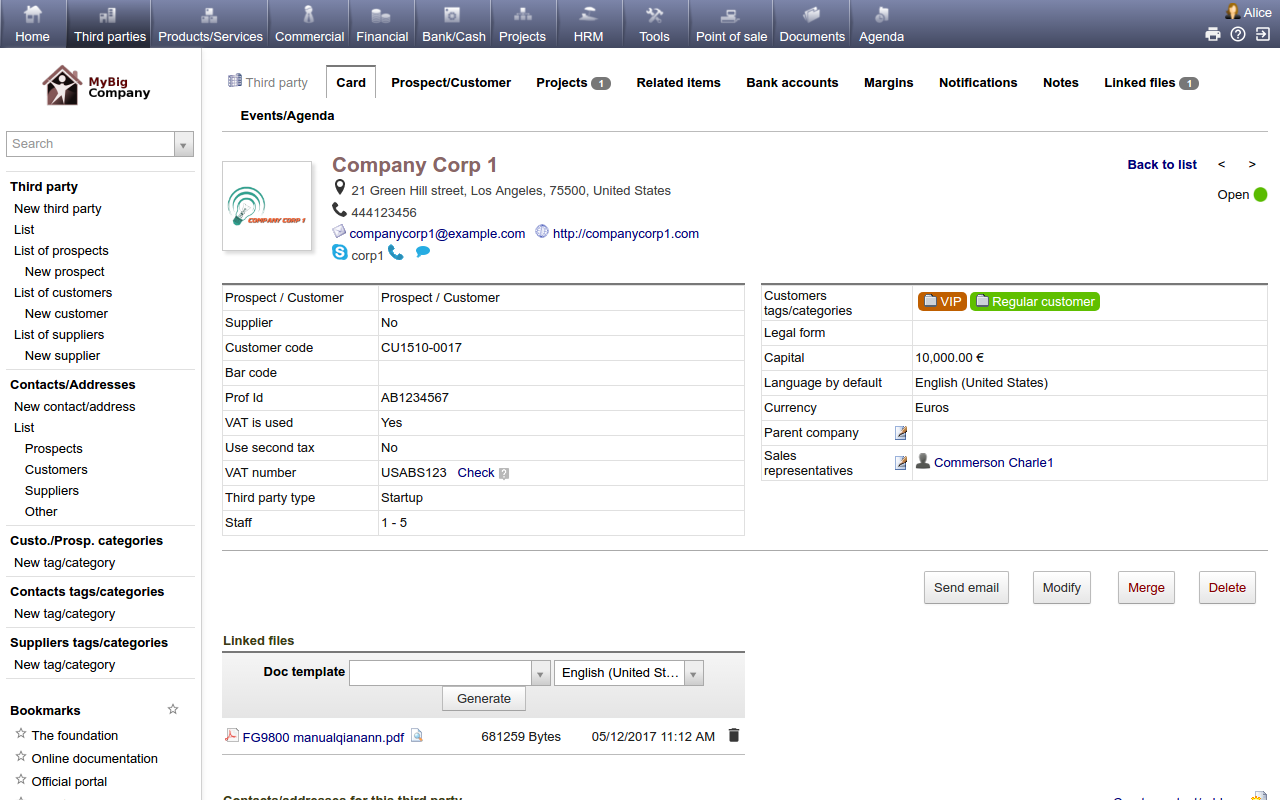
Create your prospects or customers


  • Just enter the name of the third party and the type of third party (prospect and/or customer) to create it in your database. A unique customer reference code will be automatically generated according to your numbering rule.
  • Record any other data (email, address, language, tags, ...) for a more complete and accurate management of your third party database. If the predefined fields do not suit you, you can easily create all the attributes you need as custom fields with the datatype of your choice (string, amount, date, combo list, checkbox, ...)
  • Attach any notes or files to your prospect/customer sheet.
  • If you have plenty of sales representatives in your team, then you can assign them to dedicated prospects or customers, so that you can get statistics per sales representative (Sales, Margins, Events etc.).
  • Merge third parties to remove duplicate records.

Create alternative contacts/addresses


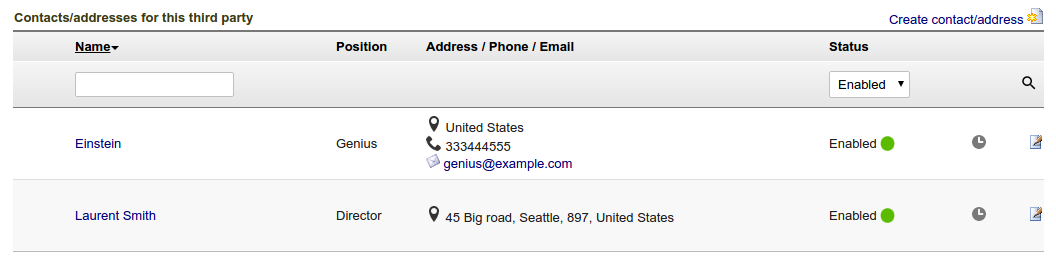
If you want, you can create one or several alternative addresses for each of your prospects or customers (one record/address for the director, another one for his or her assistant, another one for the delivery or legal service representative etc.). Assign such contacts to any business document (commercial proposals, orders, etc.) so that the correct name will be automatically filled in on any documents which are generated automatically by the system (such as PDF documents).
Set status and potential of your prospects


If you want, you can set a contact status and a potential to your prospect. You can define the different prospect potentials/levels according to your business needs.

No need to spend time in modifying the Prospect status after a conversation is completed. Just modify the status in one click from the list view without even opening the prospect sheet.


For more advanced prospecting management, you can also use the lead management module.


Create and convert your Quotes, Commercial proposals, Sale Orders, Interventions, Invoices, ...


Create rich documents using a WYSIWYG editor while reusing data such as predefined products and prices according to the modules/features that you have enabled, like Quotes or Commercial proposals, Sales Orders, Interventions, Invoices, etc. Manage documents from dedicated menus or directly from the third party sheet. Your prospects can be converted into customers automatically when a Quote or Commercial proposal is accepted.

Follow-up your prospects, and your customers


List and filter your database based on any attribute, tag or status.

Send emails to your contacts directly from the application, using predefined email templates.

Reuse your prospect or customer database to send mass emails with the Mass emailing module

Export your database with the Export module to reuse your qualified records with other external tools.

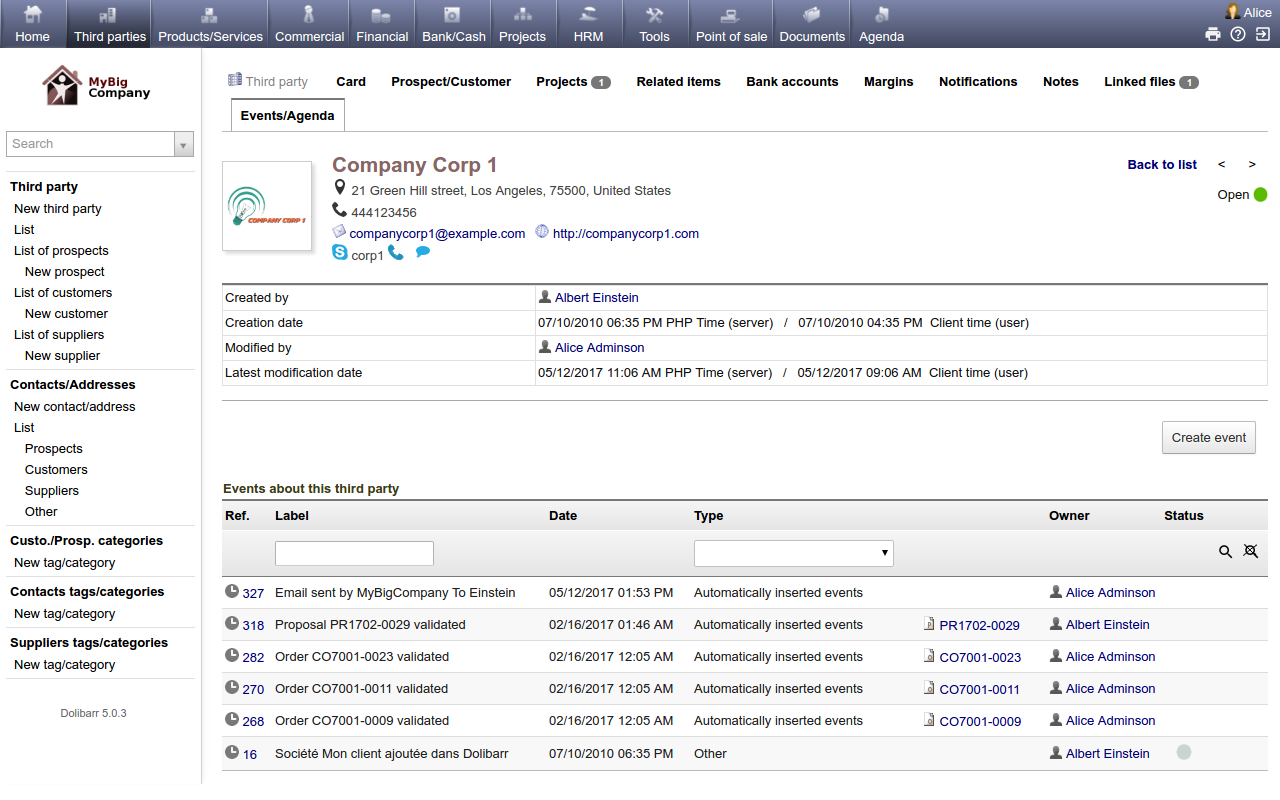
Find all the events related to your prospects and customers, such as proposal creation, invoice validation, and many other events using the events recorded automatically as per the settings configured in the module Agenda
Opportunities


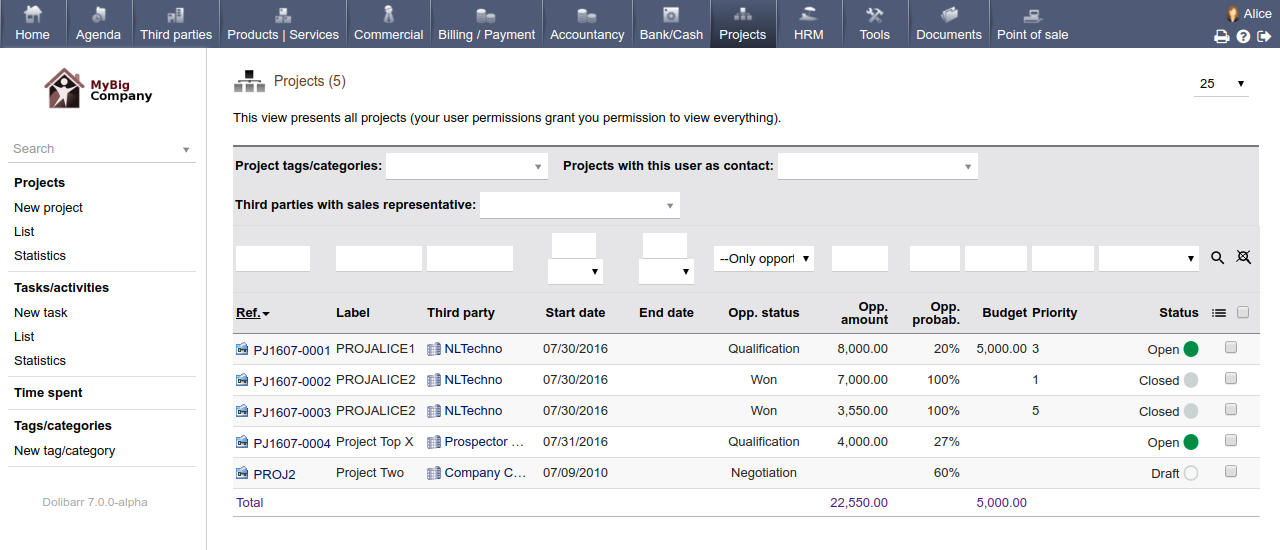
Create and follow all your leads/commercial opportunities


Create your Lead/Opportunity


Créer vos opportunités ou projets.

Include predefined products to save you time, or enter full content manually. Attach any external document.

If predefined fields do not match your needs, add your own custom fields of any type (string, amount, date, checkbox, combo list, ...) to the form.


Use your opportunities for a 360 degree view


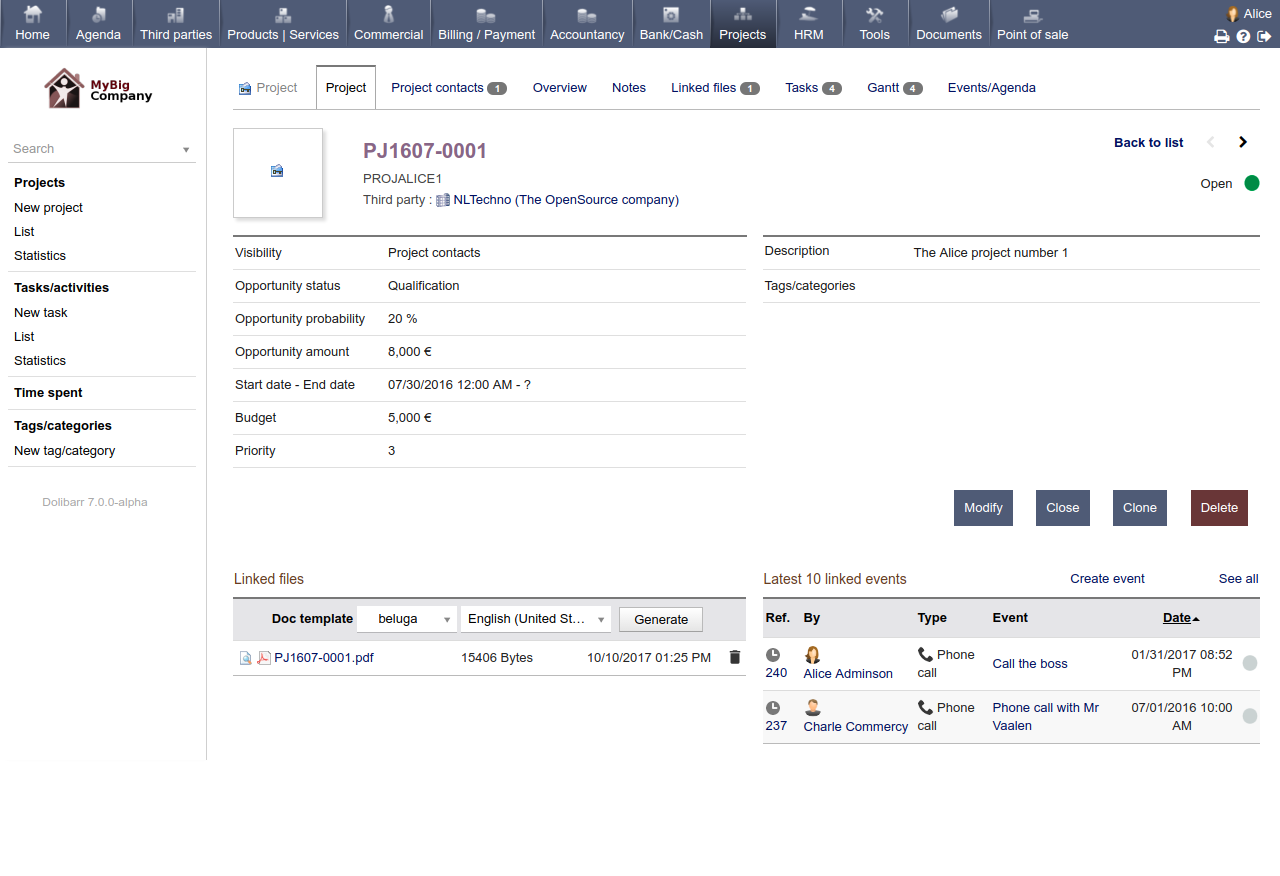
Create your quotes as well as commercial proposals and send them by Email from within the application. Enter events or setup reminders in the agenda. Link any data (events, quotes, orders, ...) to your opportunities, so that you can easily find all information from the past with respect to the opportunity.

Define an amount and a probability for winning your opportunities, so that you can have an idea of what will be your expected turnover (opportunity amount averaged with the probability)


Change the status of your opportunities into "Won" or "Lost". If the lead is won, you can also reuse the project to create new tasks to begin and track the project execution.


Follow your open opportunities


List and display all your open or closed opportunities. Choose which information you want to see on your lists. Filter and sort them based on any criteria.


Analyze your performance


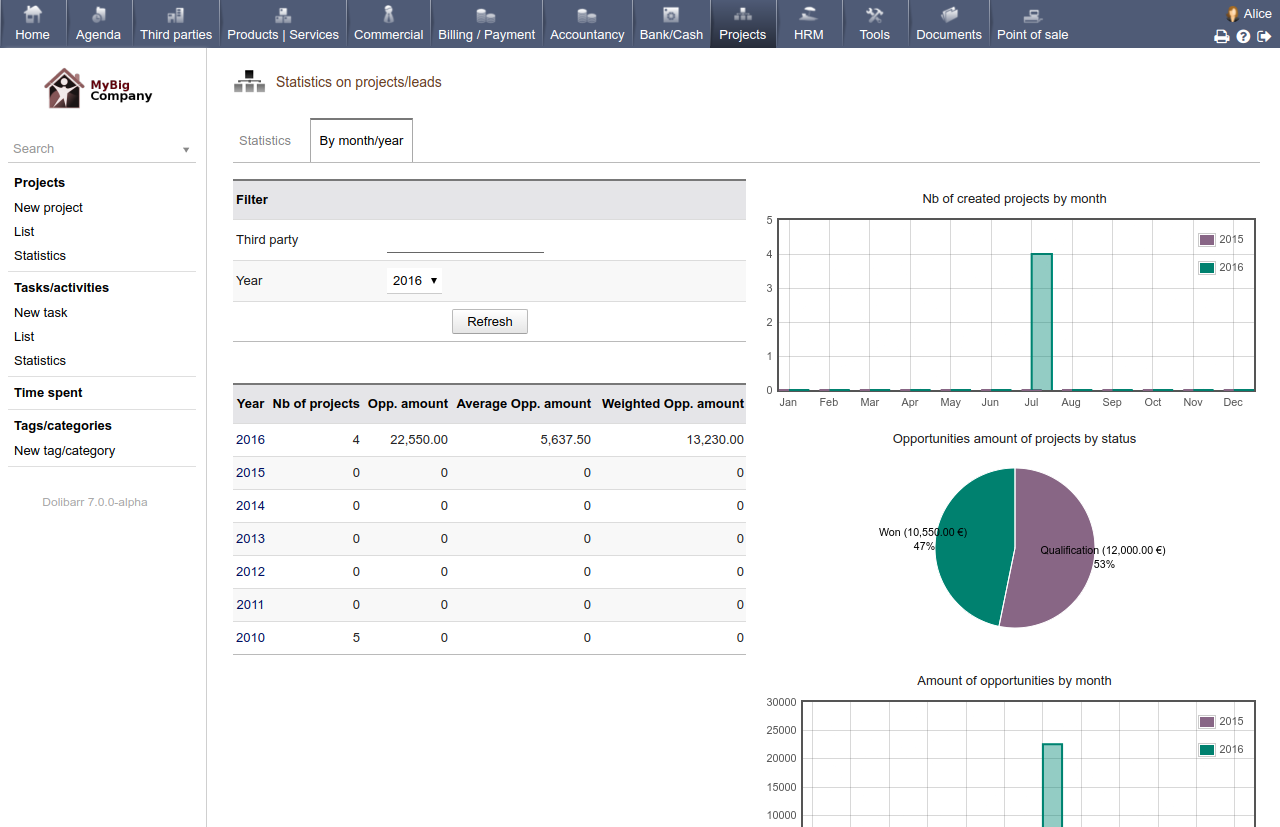
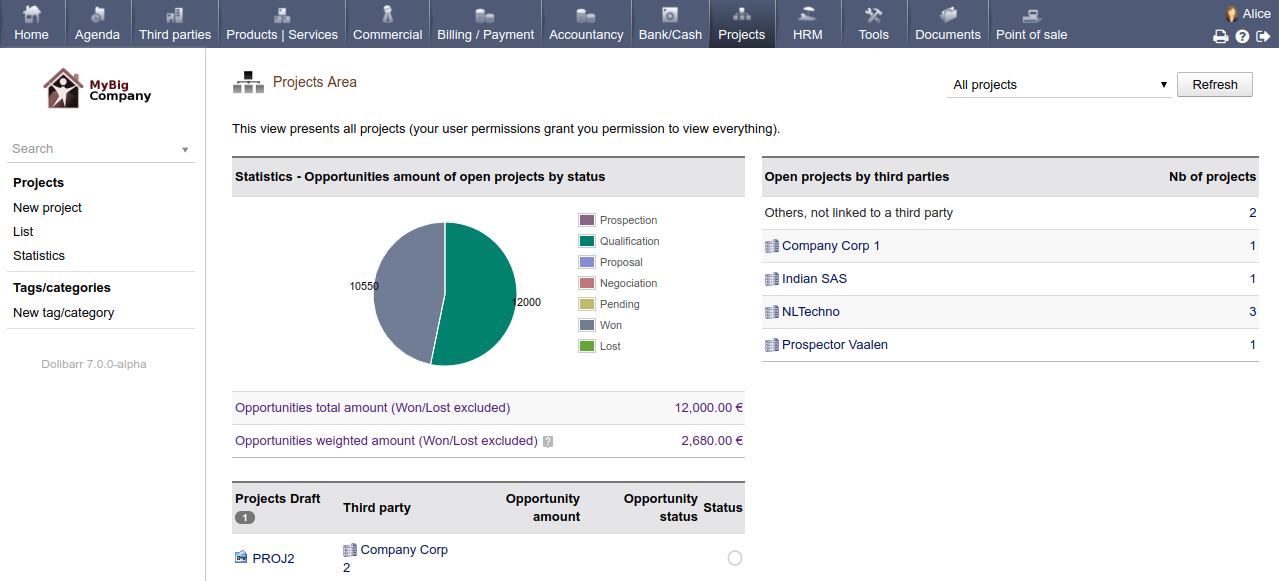
Use the predefined statistics pages to get useful information about your company or about the performance of your sales representatives.


Quotes and Proposals


Create and send professional-looking proposals to your prospects and customers instantly...


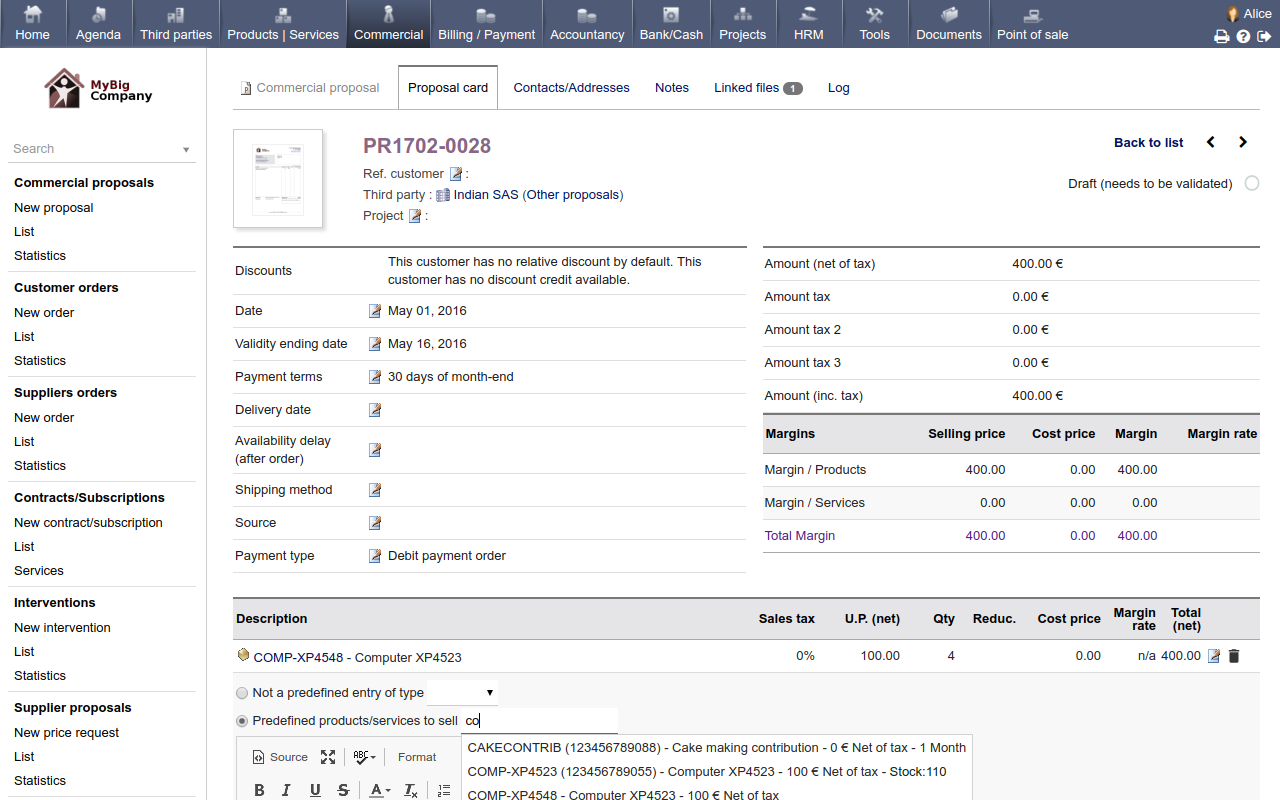
Create your Quote or Commercial Proposal


Create your quote from your prospect/customer sheet, or just in one click by reusing a previous proposal.

Include predefined products to save time, or enter the full list of products and services manually.

If predefined fields do not match your needs, then add your own custom fields of any type (string, amount, date, checkbox, combo list, ...) to the form.


Process your commercial proposal


The PDF of your commercial proposal is automatically generated and updated.


Send your quote or a selection of quotes via Email, directly from within the application. Use your predefined email templates so you don't even have to type any text.


Depending on the modules/features you have enabled, you can also convert your commercial proposal into an order (module order), a contract (module contract), intervention (module intervention), invoice (module invoice), or a combination of these. If the module margin is enabled, you can also review the margin of your proposals.


Modify the status of your proposals to "Refused" or "Signed". Your prospects are converted into customers automatically, as soon as a commercial proposal is signed.


Follow the status of your commercial proposals


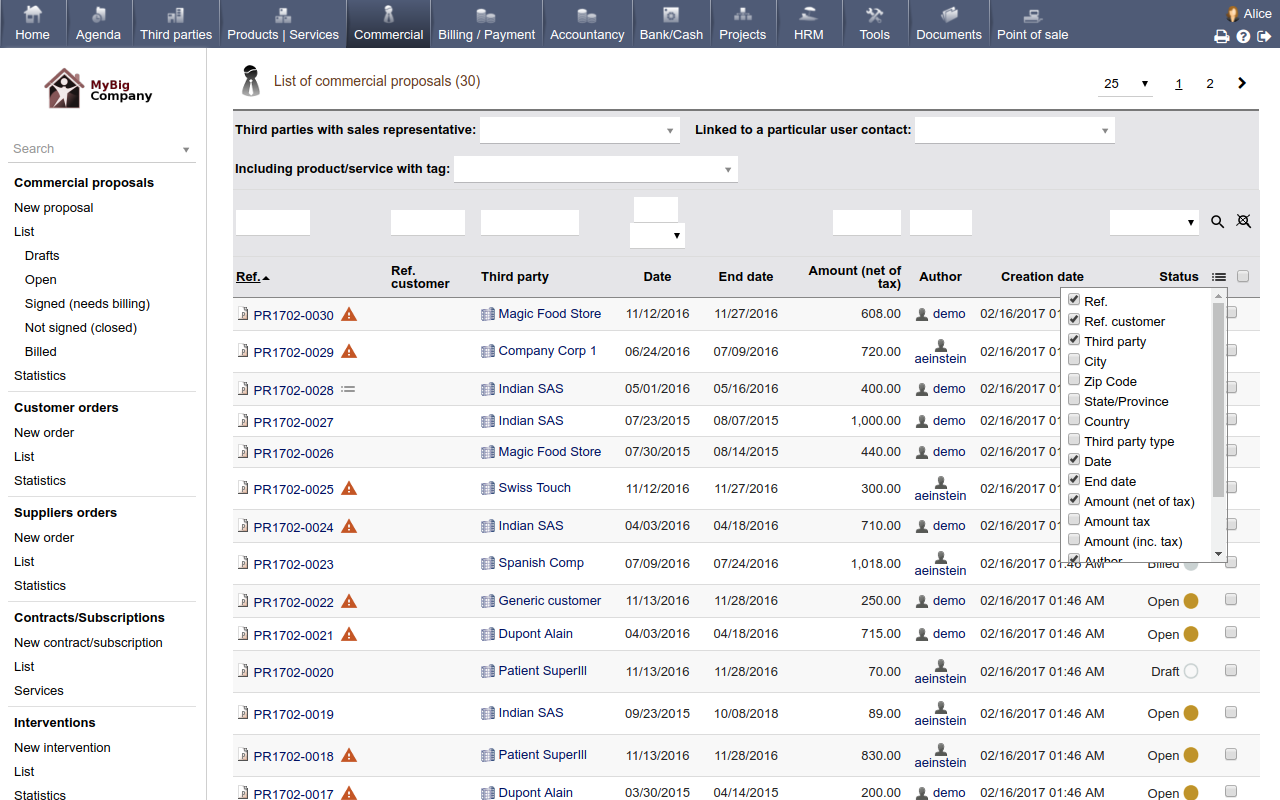
List and display all your quotes. Choose which information you want to see in your lists. Filter and sort them based on any criteria.


Analyze your performance


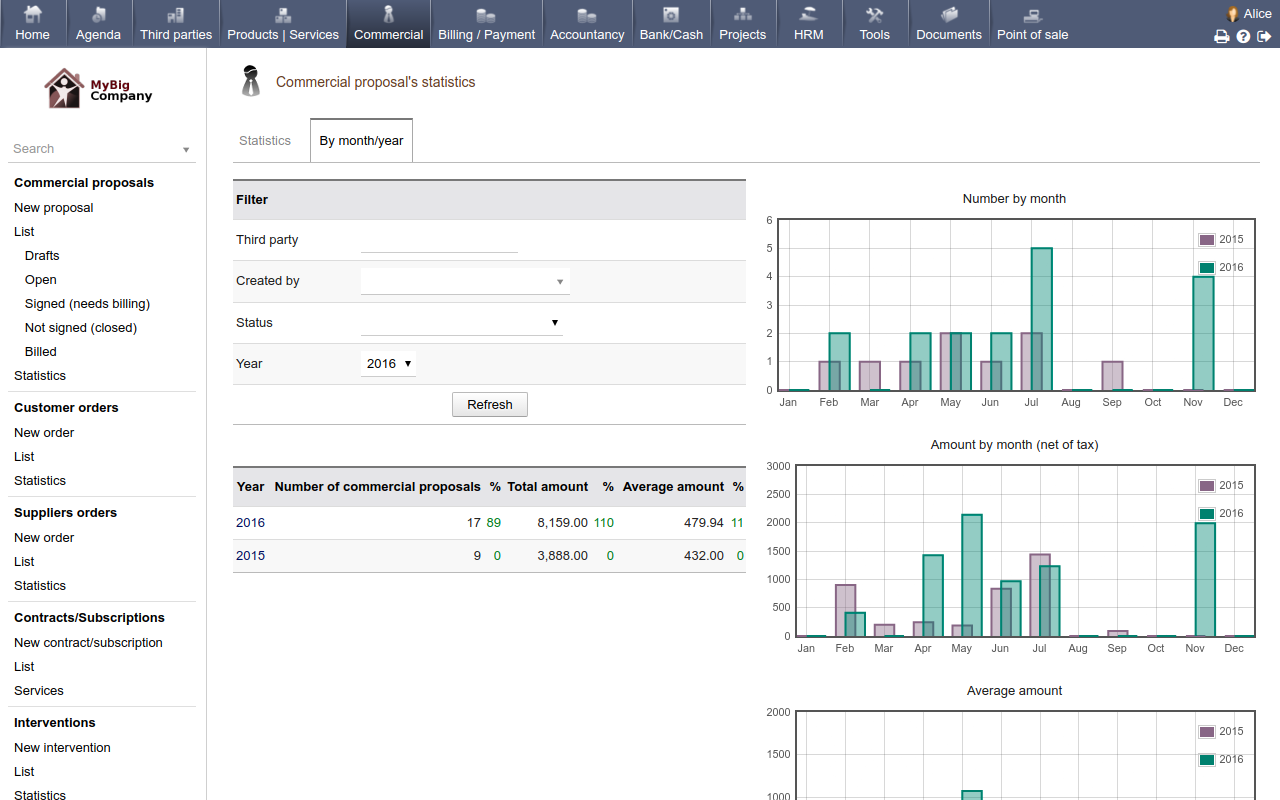
Use the predefined yet dynamic statistics pages to get useful information about your company or your sales representative's performance.


Sale Orders


Manage your customer or supplier orders.
Manage your order workflow and product stock according to your rules.


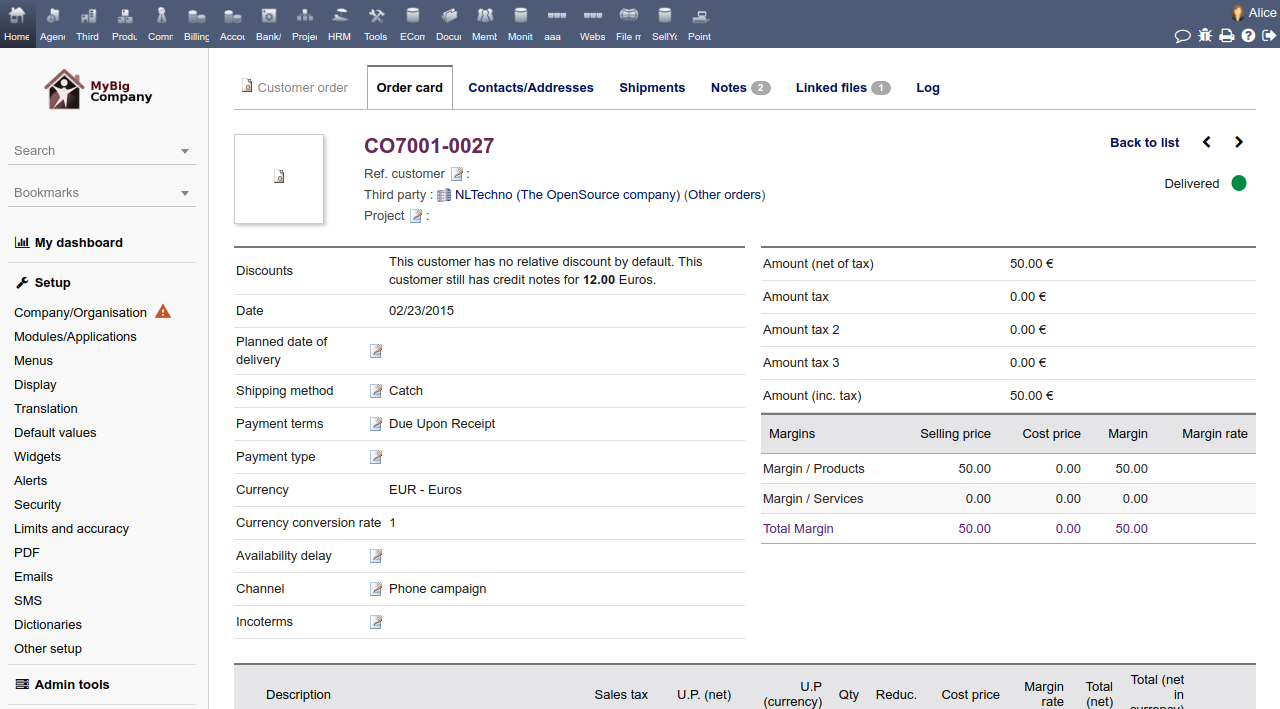
Create your Order


Create your orders from your customer sheet, or in a single click by reusing a signed proposal or contract to save time.

Include predefined products to save you time, or enter the list of products and services manually.

If predefined fields do not match your needs, add your own custom fields of any type (string, amount, date, checkbox, combo list, ...) to the form.


Process your Order


The PDF of your order is automatically generated and updated.


Send your order acknowledgement by Email directly from within the application. Use your predefined email templates, so you don't even have to type any text.


Depending on the modules/features you have enabled, you can also convert your order into a contract (module contract), intervention (module intervention), invoice (module invoice) or a combination of these. If the module margin is enabled, you can also review the margin on your orders.


If you decide to manage shipments, then you can close your orders automatically when all the shipments are completed. Depending on your setup, if you need to manage stock, your stock may also be automatically increased or decreased as applicable.


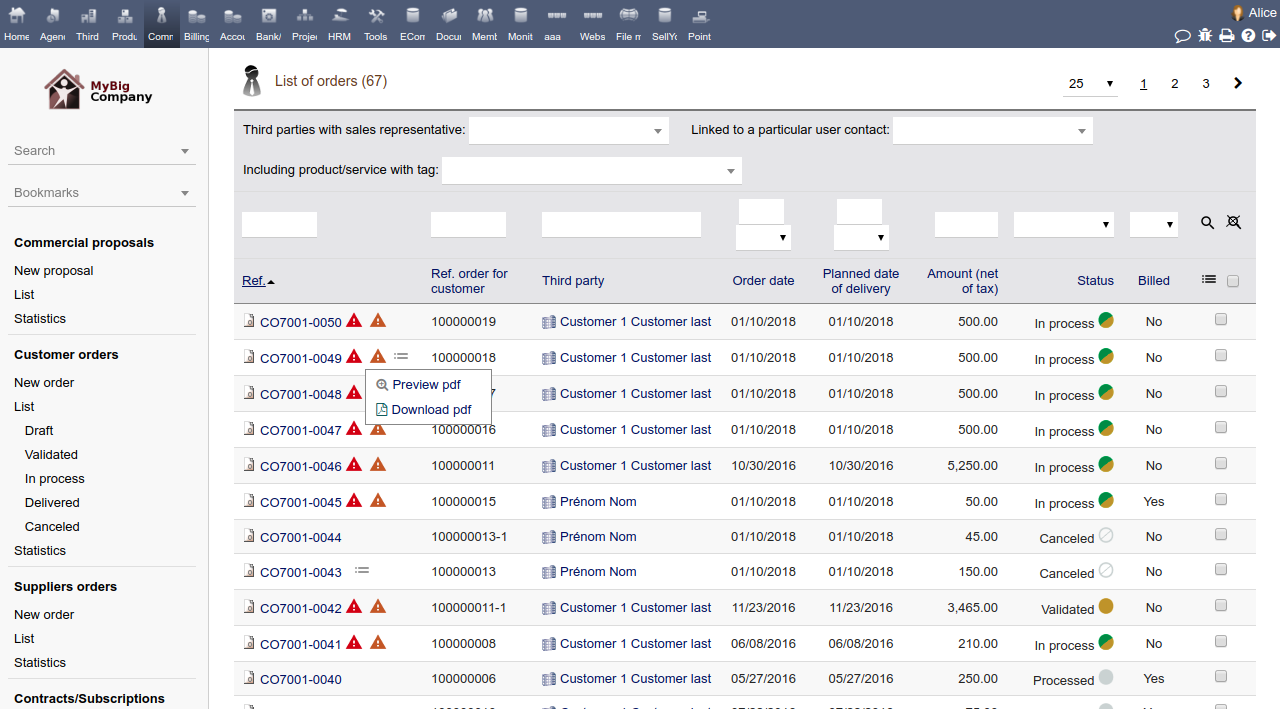
Follow the status of your open Orders


List and display all your orders. Choose which information you want to see in your list views. Filter and sort your lists based on any criteria.


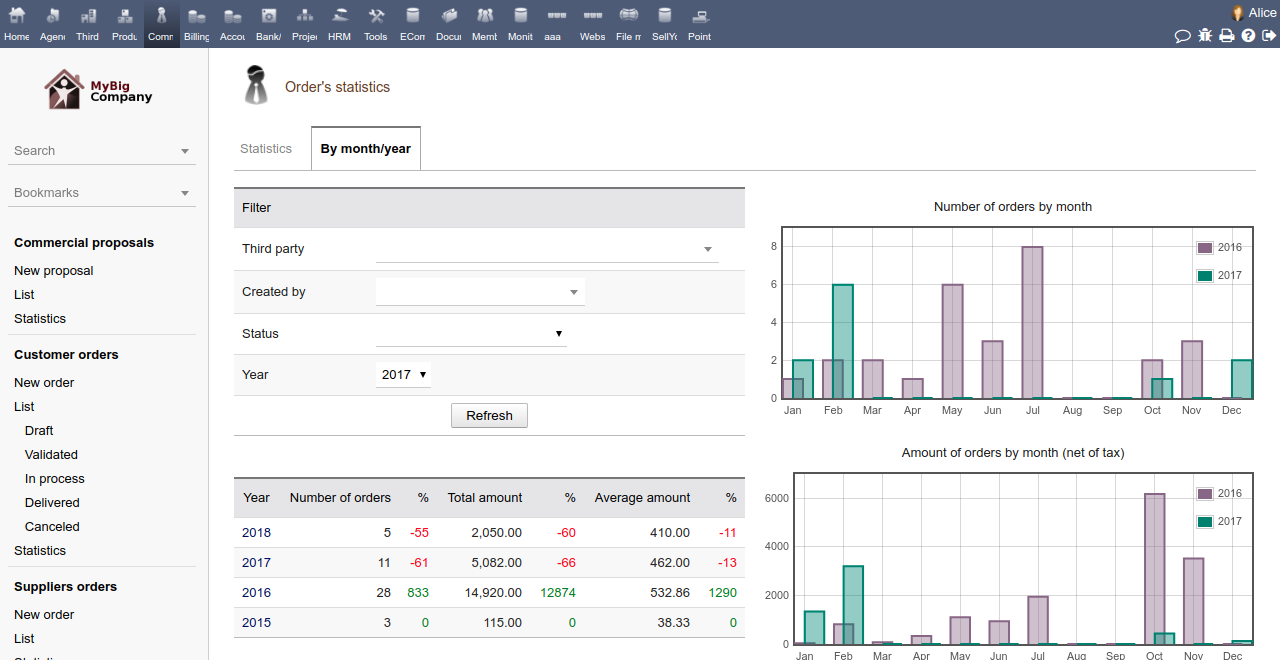
Analyze your sales or delivery performance


Use predefined and dynamic statistics pages to get useful information about your sales representative's performance.


Contracts and Subscriptions


Manage customer/supplier contracts and subscriptions.
Generate recurring invoices of subscriptions automatically.


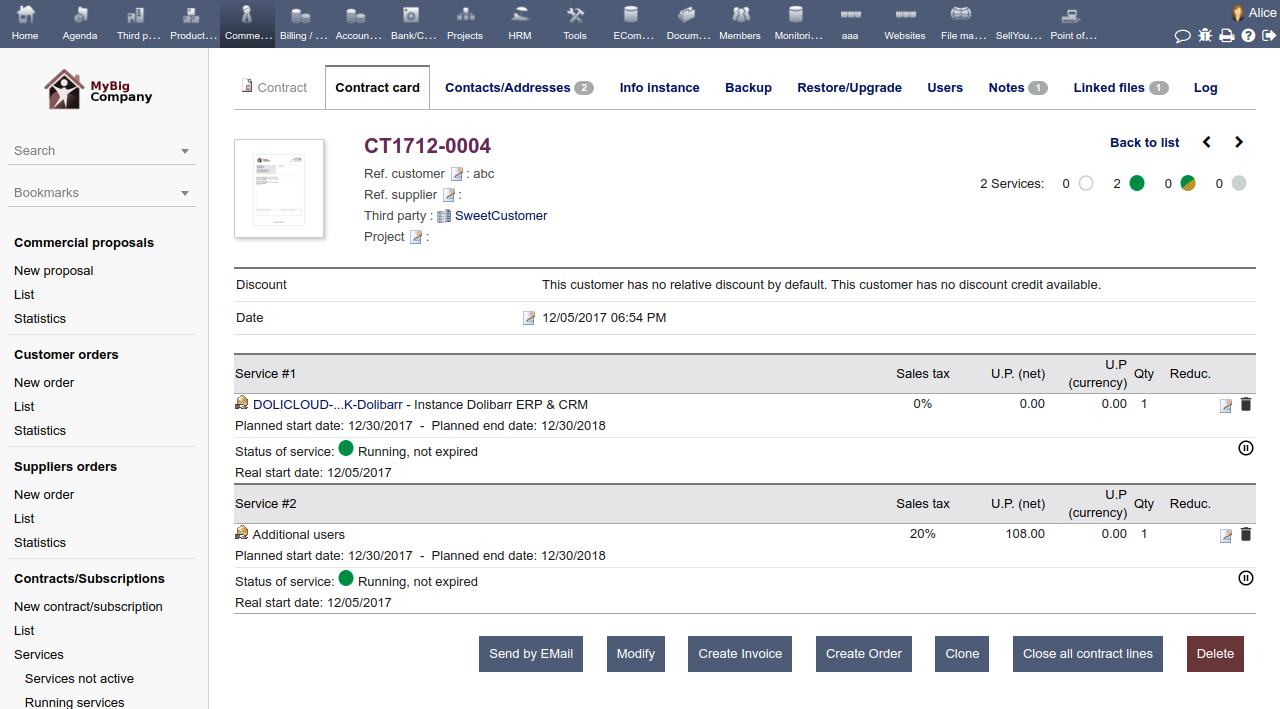
Create Contract with subscribed services


Create your contract from your prospect/customer sheet, or just in one click by reusing a proposal or an order.

Include predefined products/services to save your time, or enter the full list of products and services manually.

If predefined fields do not match your needs, add your own custom fields of any type (string, amount, date, checkbox, combo list, ...) to the form.


A PDF of your contract is automatically generated and updated.


Change the status of your services ("Running", "Disabled") and update the end date at any time. Attach notes or files to your contract.


Convert your customer contract into one-time invoices or recurring invoices


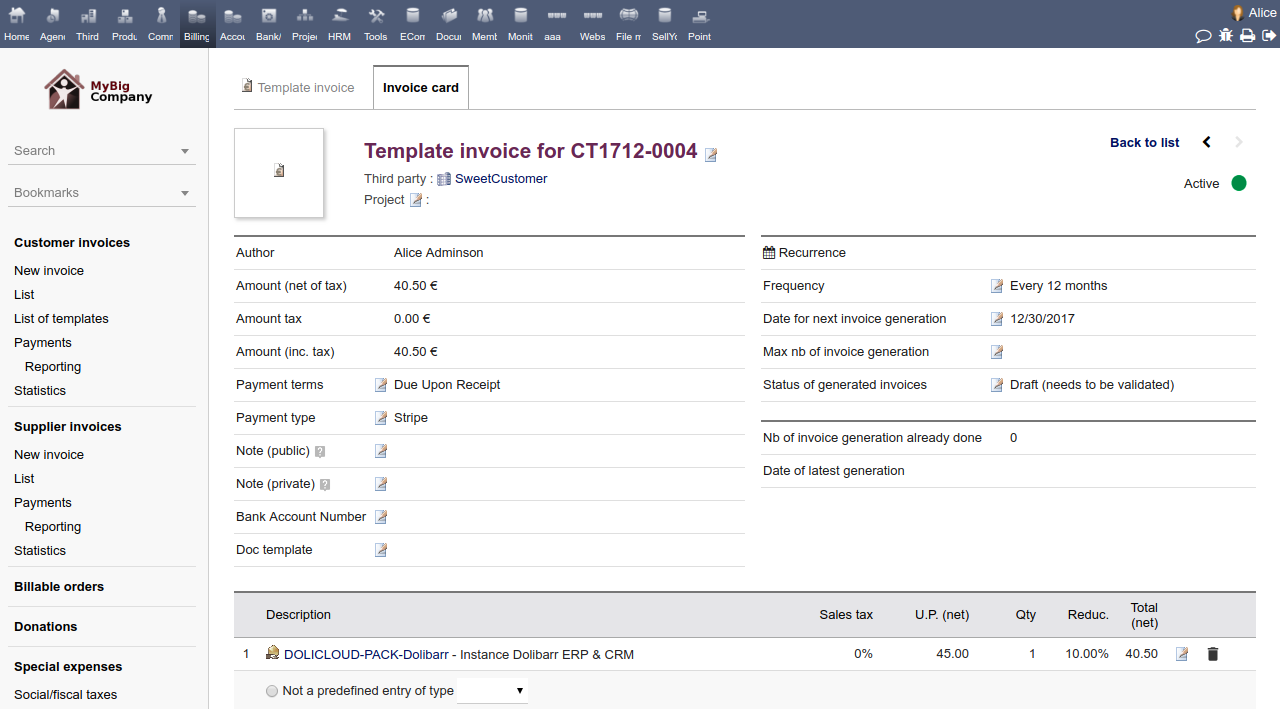
You can convert your contract into one or several invoices. If your contract is supposed to track a recurring service, then convert it into a recurring template invoice: Define the frequency, amount, date of the first invoice and/or a maximum number of invoices to generate. Your template invoice will be pre-filled with the data of your contract services, and the invoices will be generated automatically.


A link is maintained between your template invoice and your contract so that any invoices generated will also be linked to the contract.

You can change, at any time, the content of your contract or the content of your template invoice and the way you will bill your customer without having to break this link.


Follow and manage your contracts and services


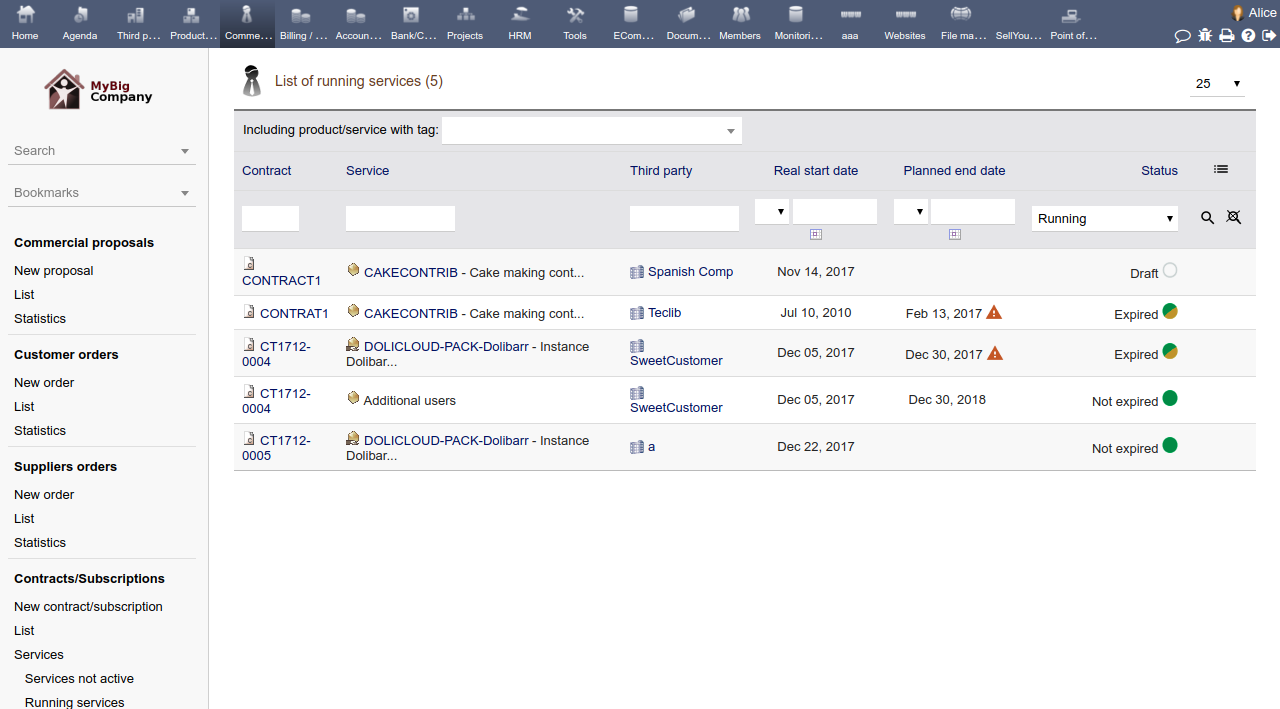
Check which service is expired or is about to be expired. Renew your contract/service before the end date or close them if required.


Export your Contracts and Services along with their status with the Export module to reuse them with third-party tools, or connect your BI suite directly to the open database for Big Data analysis.


Demande | Tickets


Manage a help desk / follow issues.


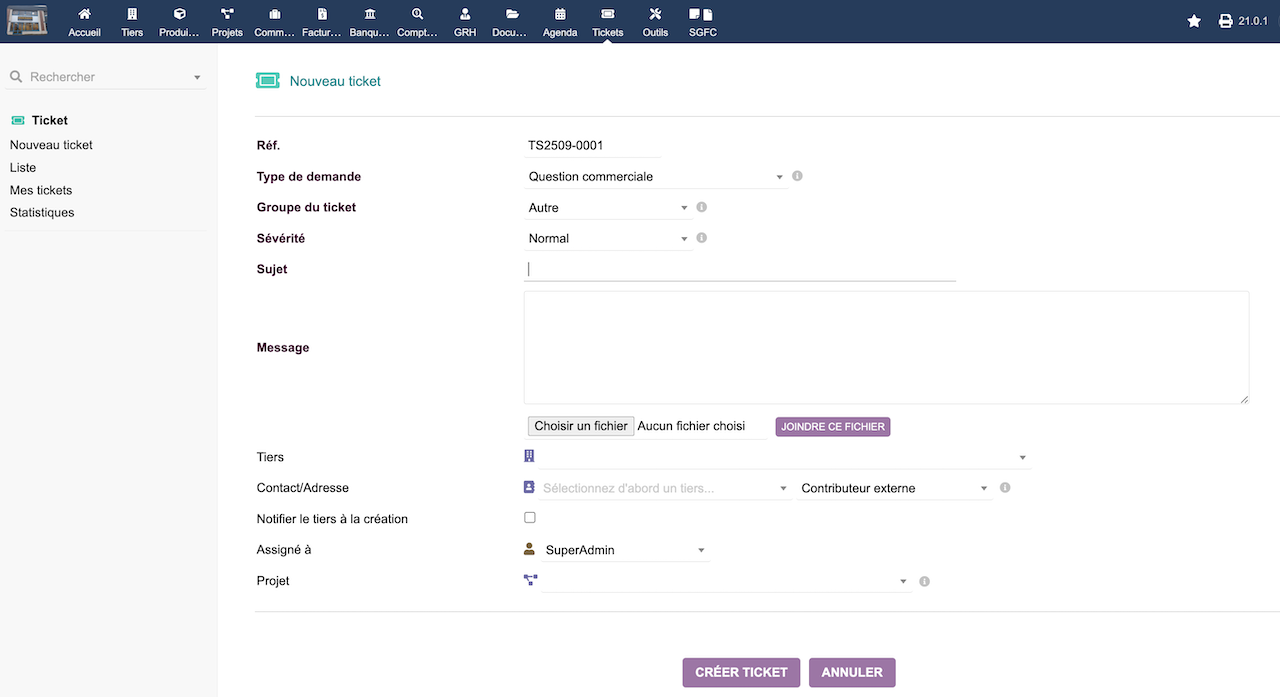
A portal for your partner or customers to report tickets or issues


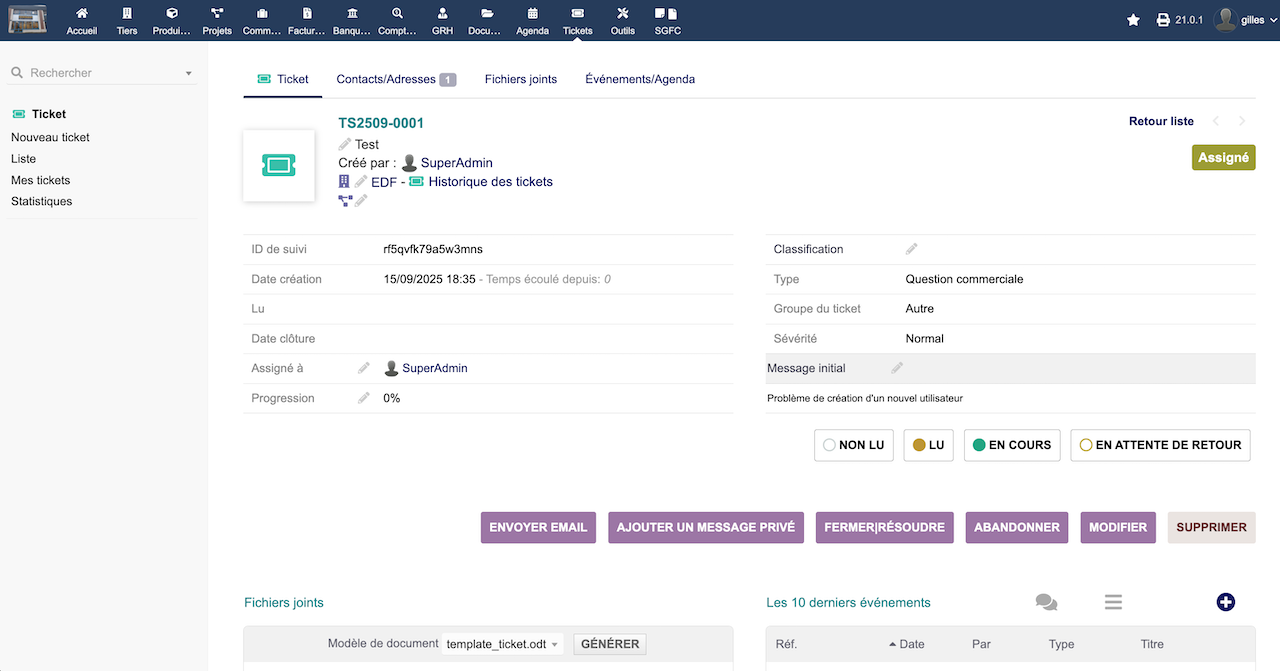
Follow and answer tickets


CMS - Websites


A CMS module to build your Website in few minutes.


CMS
,  
ECommerce


Build your company's public website or private intranet quickly and reuse all the information available in your ERP to make your website dynamic.


Create your website


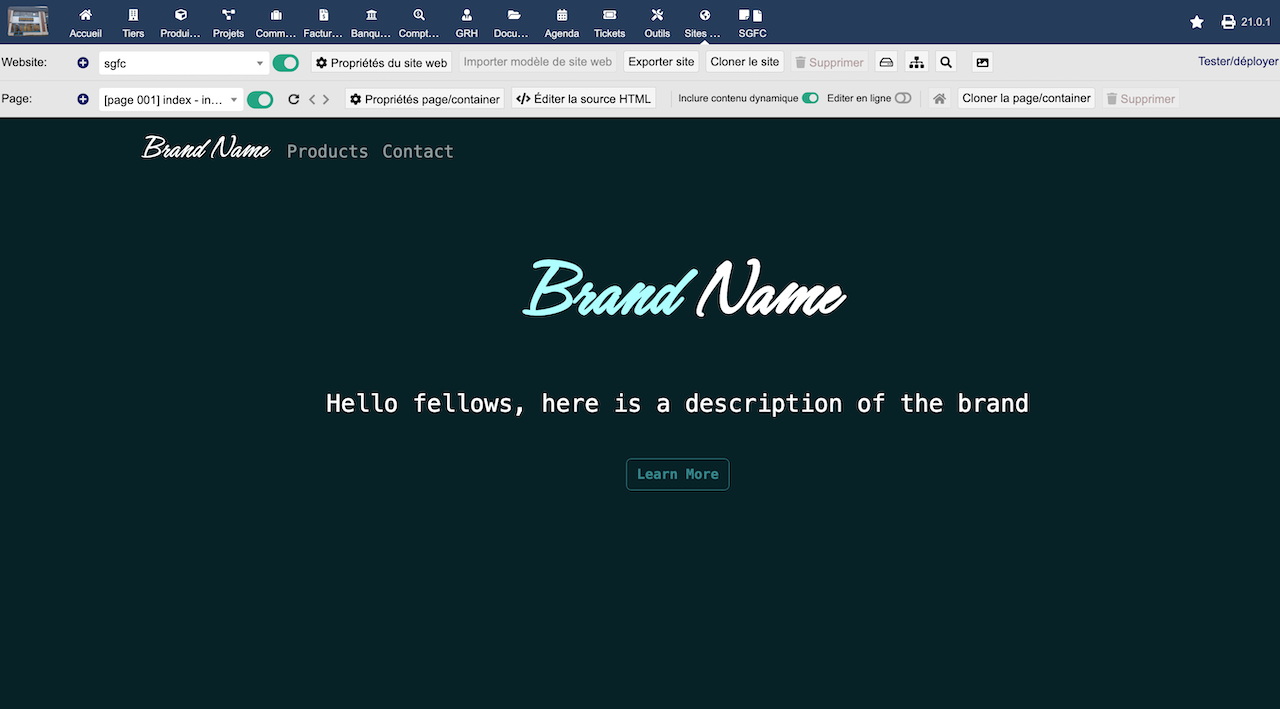
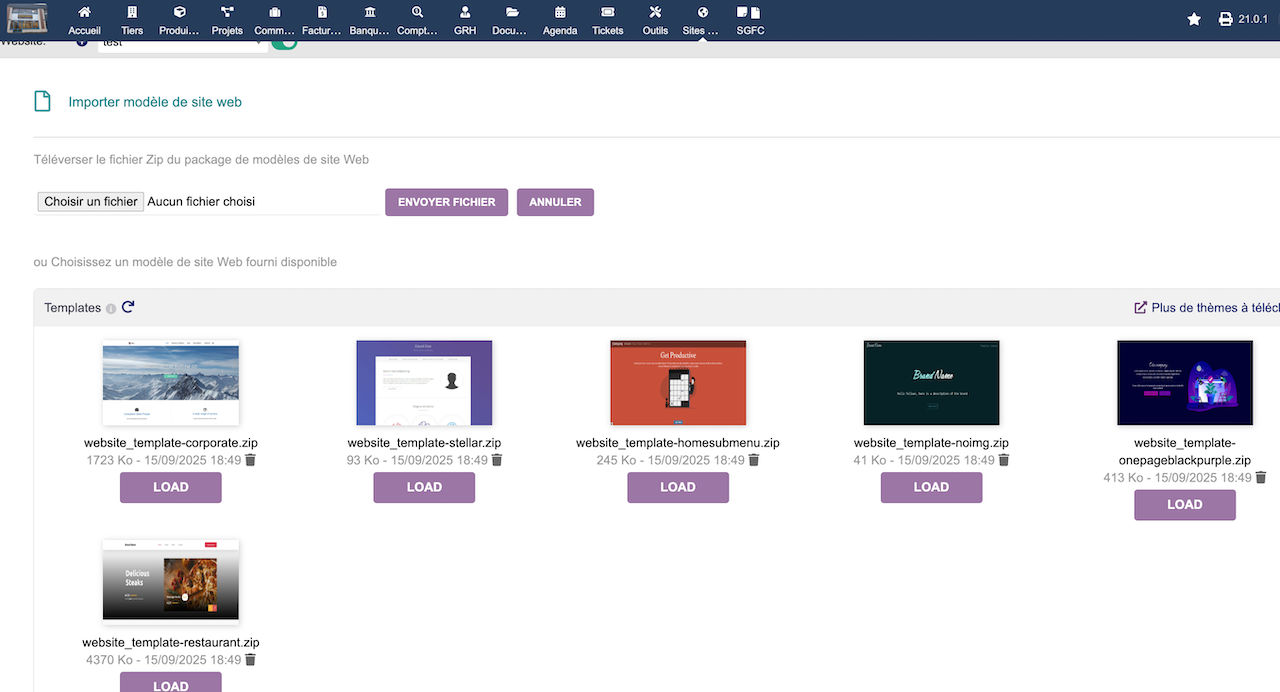
Use existing website templates to save you precious time, so you can get your website ready in just a few seconds.


Or, create a website and build the page content from scratch using the website editor. You don't need any technical knowledge to use the website editor. However, if you are an experienced developer or webmaster, then you can use the HTML and CSS embedded editor to build a fully custom website.


You can export, clone and import a full website in just a few clicks.


Use the container/page architecture to organize content


Organize pages or content into containers. Include any container/page into other containers/pages. For example, you can have a top-level container to define the template of a website that includes a container for your header, another one for your footer and another one for the main content. There is no limit on the number of levels for embedded containers/content, so you have a more powerful and more flexible CMS than any other traditional CMS like Joomla, Wordpress or Drupal, in which case the position of the content is defined by a template.


Test your website with no need of any external web server


Dolibarr includes its own web server, so you can preview your website content without the need to install a web server.


Include dynamic content on your website


Because the website is integrated into your ERP system, you can include any data coming from your ERP system easily. All the objects required to read your data are available automatically and can be accessed and manipulated using PHP code snippets that you can embed into your web pages/containers whenever you need them.


Serve your website with your own server like Apache or Nginx


Once your website is ready to be online, just create a virtual host in your favorite web server like Apache, Nginx, or other server that points to the directory where your website pages are generated and your website is running, including dynamic content provided by your ERP, even if your ERP is not exposed to the Internet.


Point Of Sale (POS)


Use TakePOS, the latest generation of Point Of Sale system, to record orders or payments in your...


shop
,  
bar
,  
restaurant


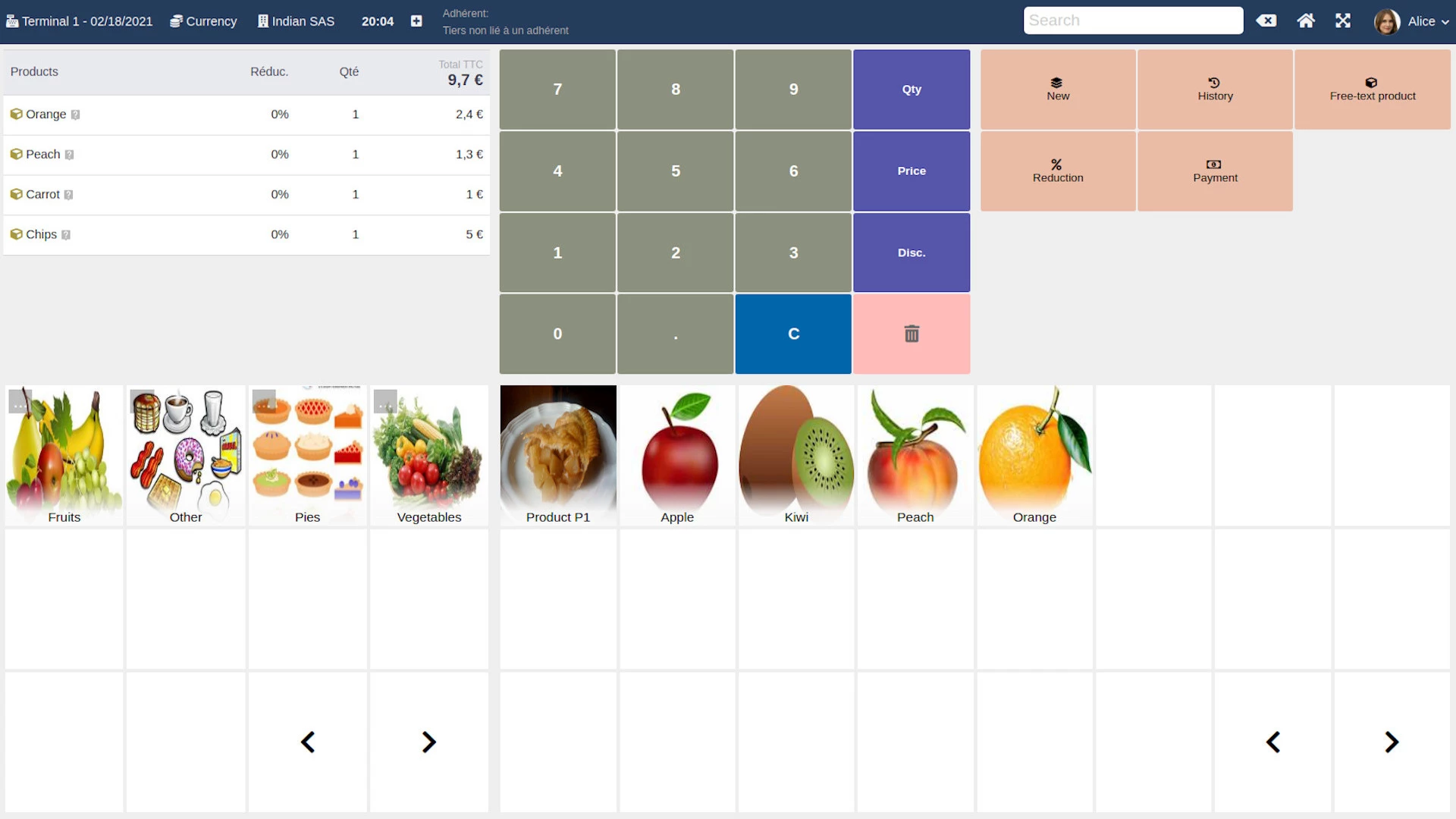
A touchscreen POS


Dolibarr provides a POS interface (Point Of Sale) for traditional shops as well as for Bars and Restaurants. All the features you need to manage a Point Of Sale with one or several POS terminals is provided by the module TakePOS.

A Modern Open Source Point Of Sale


Manage Bars and Restaurants


Define your floors, rooms, and tables with a drag and drop interface. You can assign orders and invoices to any given table on the floor.


Display a QRCode in your bar or restaurant, so your customers can access an interface for contactless, self-order


This feature called "Auto Order" allows you to display a QR Code in your shop, bar, or restaurant so that each customer, by scanning the QR code, can access a simple application and place the order themselves.


Automatic Stock update


You can set the application to automatically decrease your stock when an order is processed, so that your stock is always up to date in real-time.


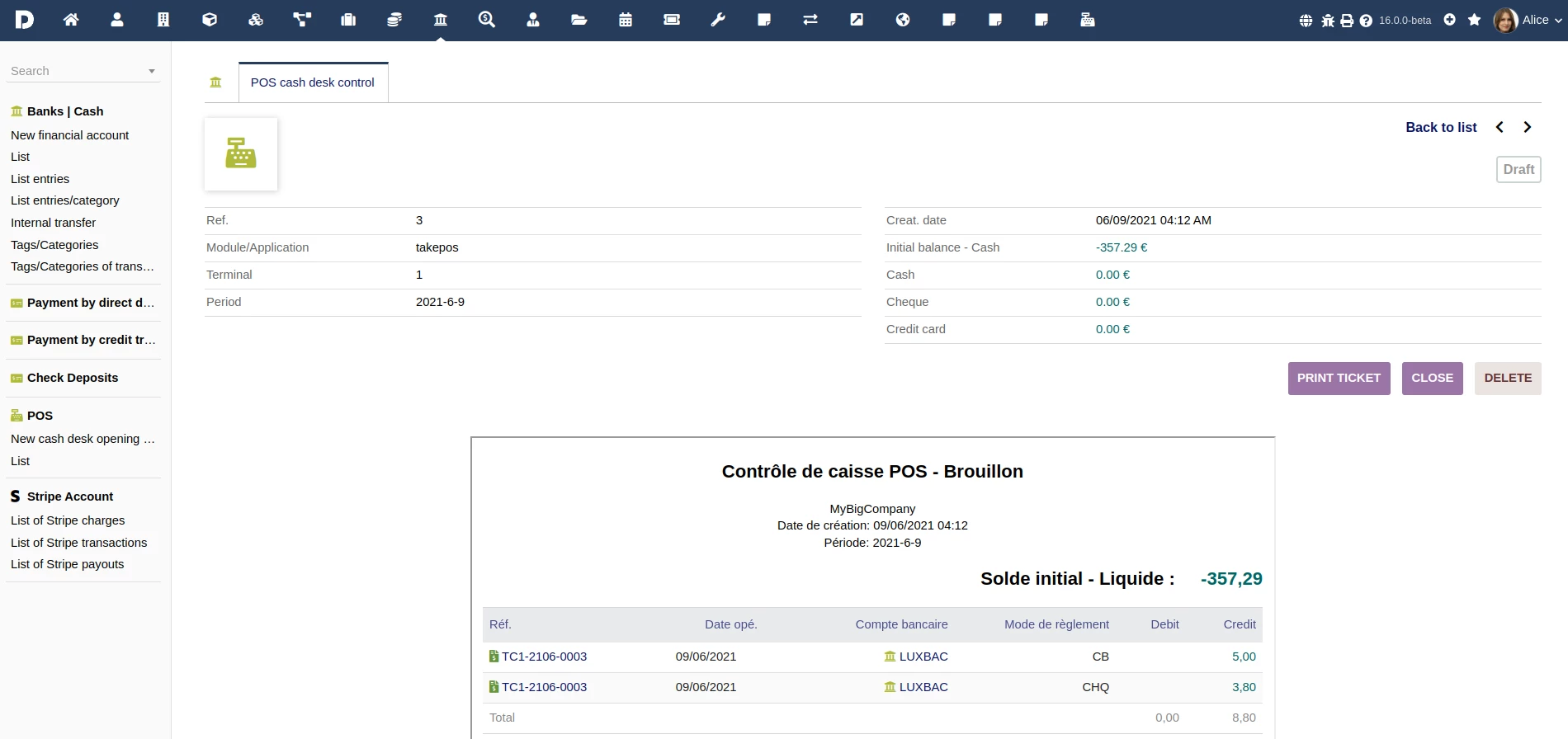
Quick cash box control ...


Make the cash box control of the day, of the month, at opening, at closing, per terminal, ...

Cash fence with Dolibarr


Employees and Users


Manage your users, user groups, and permissions


Create your employee/user accounts


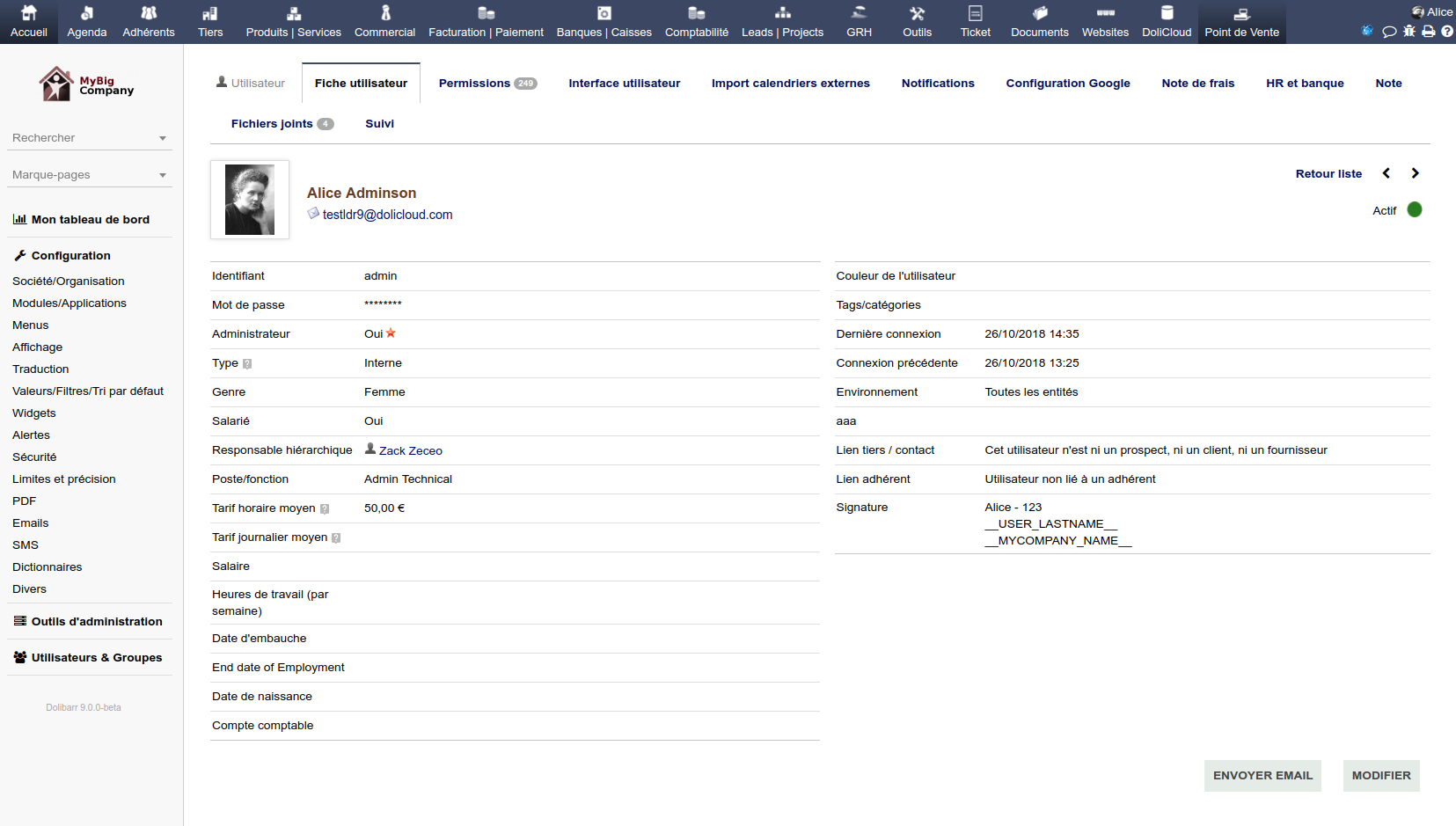
Create user accounts for your employees (internal users) and/or for your customers, suppliers, or partners (external users). Creating an account for your employees will allow them to access data in Dolibarr and to interact with all the application features such as Third parties, Business documents, and other applicable modules according to the access control permissions that have been defined.


Creating a user only requires saving a name, a login name, and a password. Many other options and data can be set, such as job position, gender, notes, attaching external files, status etc. You can also set a user color so that you can identify user events easily on the agenda module.


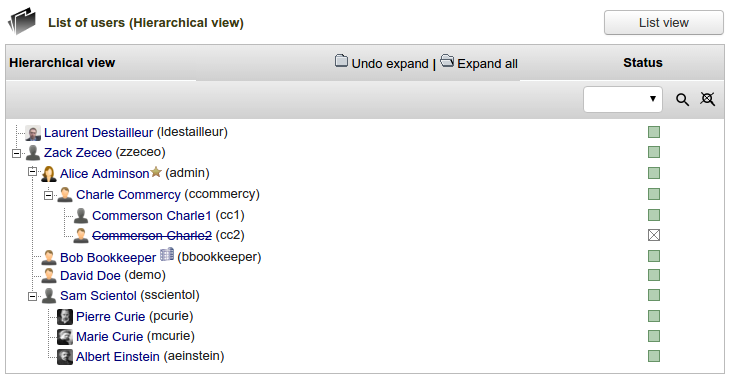
Define the hierarchy of your employees/users


Set the hierarchy of your employees, so that when filling in leave requests, expense reports, and in other respective modules, the supervisor of the employee will be notified to validate the request.


Define an hourly rate for each of your employees


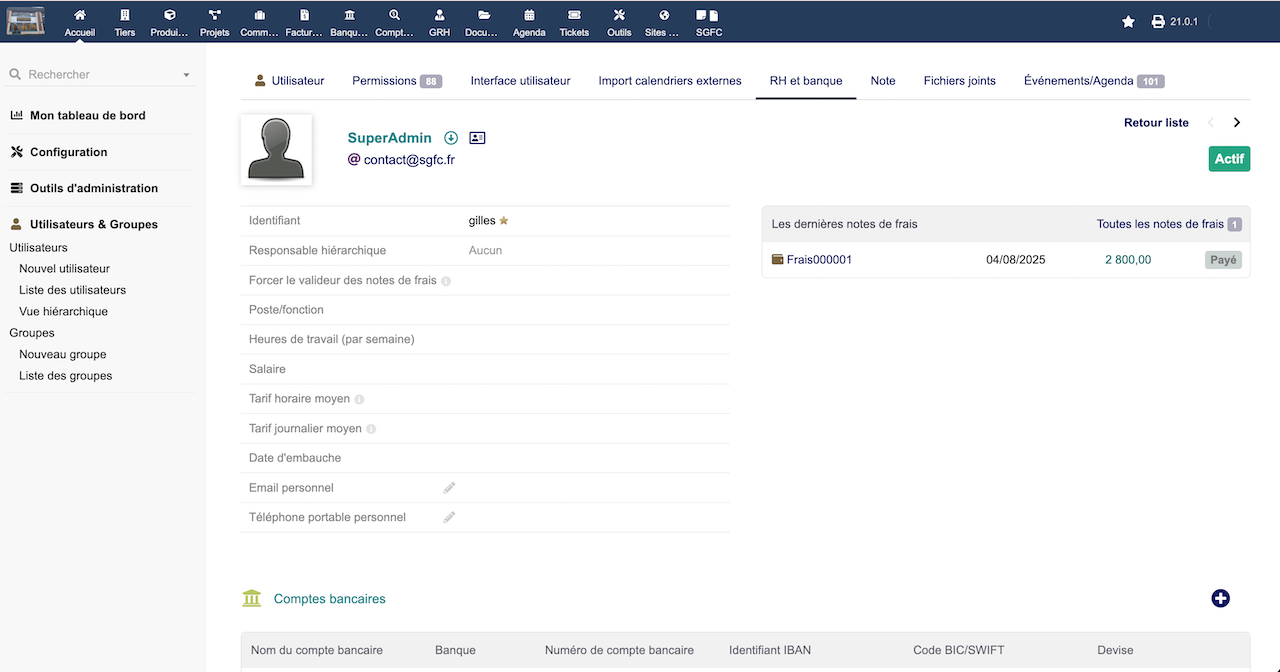
Define an hourly rate for each employee, so that if they use the timesheet feature, their time spent will be converted into a value in your currency. If you use the module Project, you will be able to see the cost applicable for the time spent by your employees as part of the profitability of your projects.


Set an user e-mail and a nice corporate email signature


Saving an e-mail address on the user's card will allow the user to send emails from within Dolibarr. Their signature will be displayed in each email sent from Dolibarr.


Set permissions for your users or groups


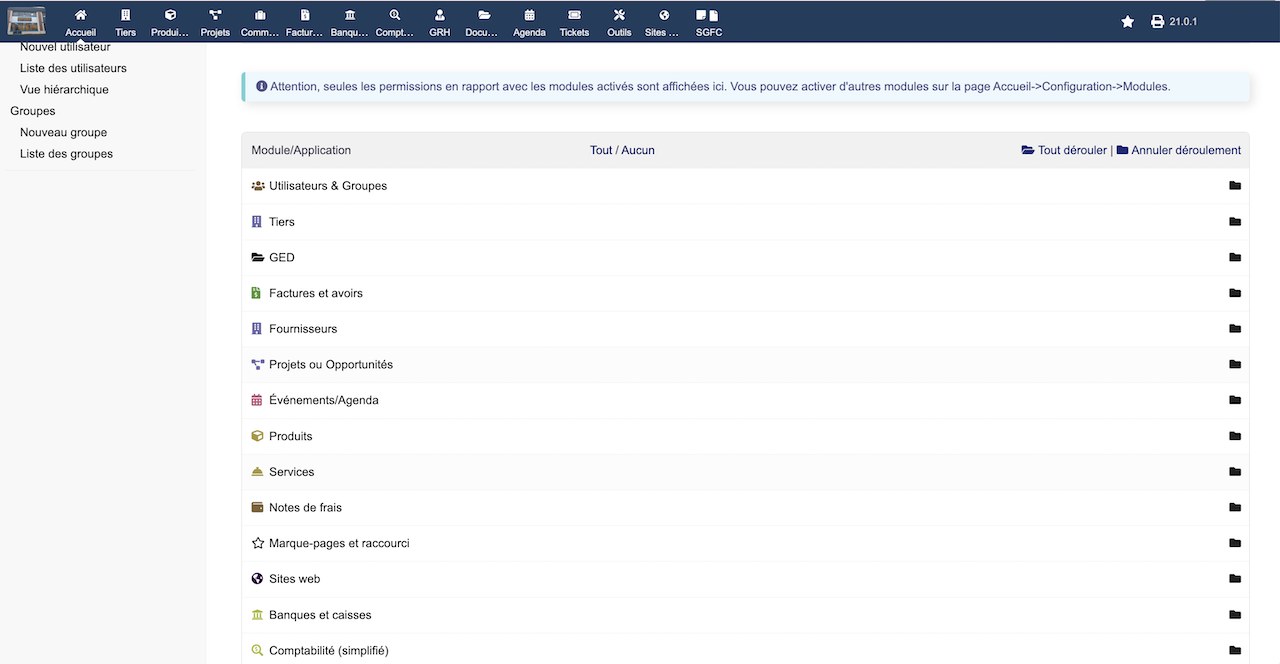
You can prevent users from having access to certain Dolibarr features and confidential data by defining appropriate user permissions on the user card's 'permissions' tab.

If you have a lot of users, then you must consider creating user groups, define permissions on those user groups, and assign users to those groups.


Personalize the display for each user


Each user can personalize the environment, including language, theme, entry page, and also the dashboard.


Leave requests, expenses reports, and timesheets


Depending on which applications and enabled and which permissions have been assigned, users will have the ability to create leave requests, expense reports, and timesheets. Leave requests and expense reports will have to be approved by the user's supervisor, who will be notified via email when a leave request or expense report is submitted by the user.


Expense Reports


Let your employees record their expense reports. Approve and follow their payment.


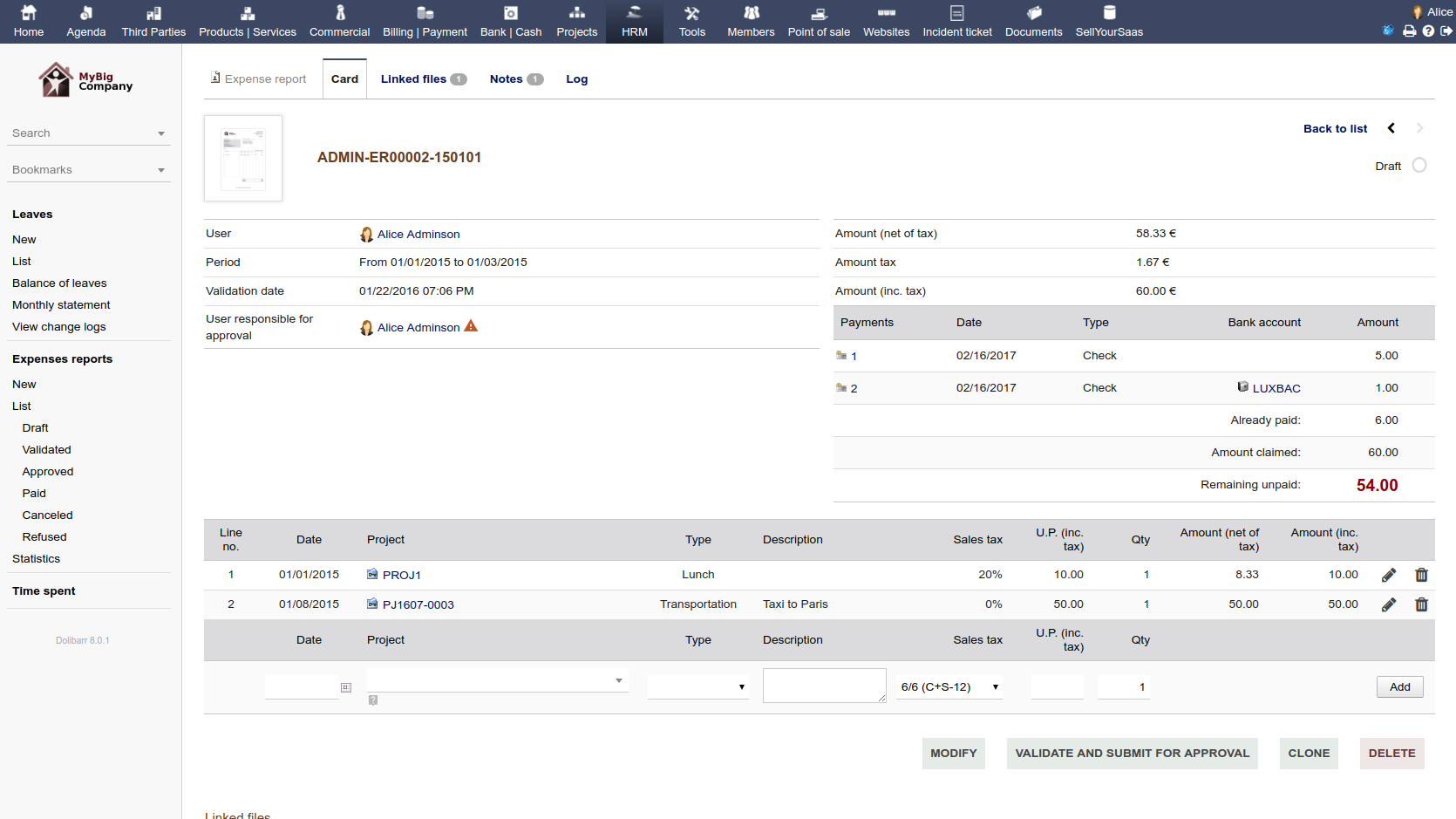
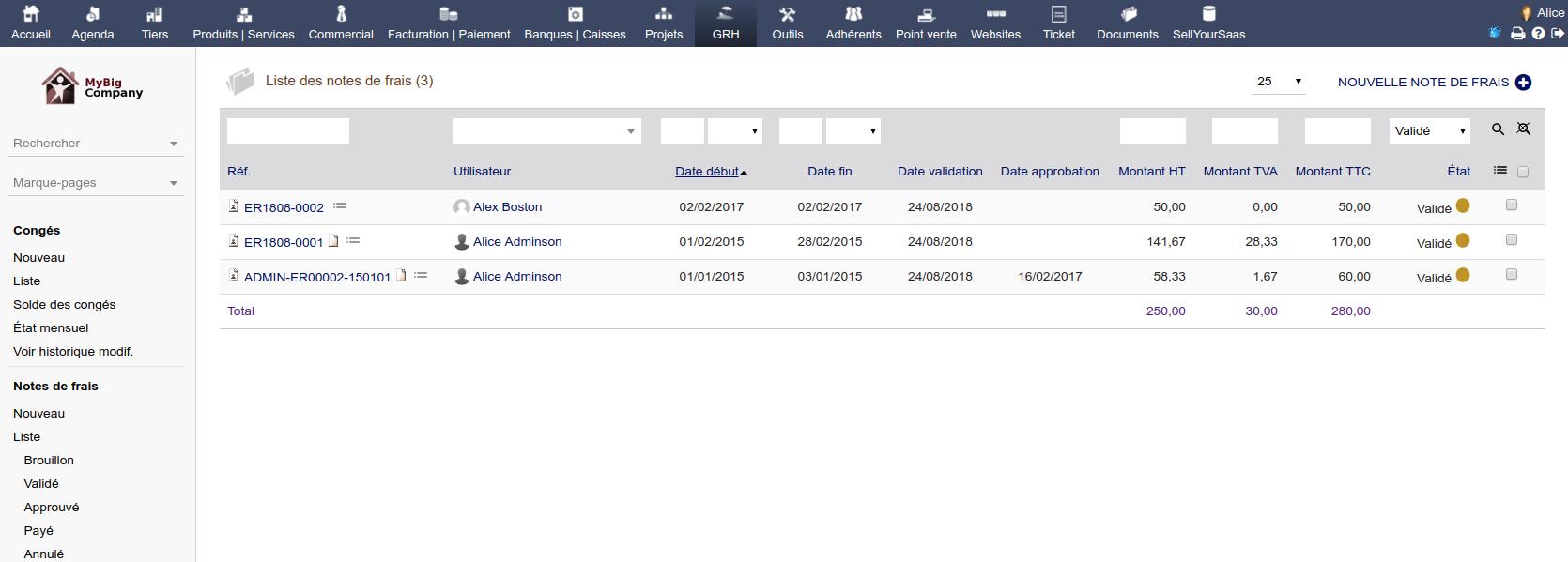
Expenses reports feature offers a workflow to let your employees make their expense report. The manager will receive alerts to refuse or approve the expense report. You can also follow if it has been paid or not.


Expense report requests


Let your employees fill in their expenses reports. A permission system tell who can and can't record such requests.

Join any files (proof of purchase, receipts, bills, ...) to the expense report.


Define the type of expense reports in the dictionaries, so you will be able to have accurate statistics. If you use the module Accounting, each type of expense may be dispatched into a different accounting account.


Link expense reports to your lead/projects and retrieve them in the project overview.


Validate and send e-mail for approval


Validate your expense report for approval. An E-mail is generated automatically and sent to the employee supervisor.


Approve the expense report


As a manager, find all the expense reports waiting for your approval, and validate or refuse them.


Refuse the expense report or approve it. And let your employee know why an request was refused.


Pay the expense report


Follow which expense report was payed or not.


Export data


Use the export wizard to export all the data required by your bookkeeper or by any payroll providers.


Leaves


Allows your employees to make leave requests.
Once the leave request is approved, the system automatically decreases the leave balance.


Define different types of leaves/holidays


According to your country and its laws, define all the types of leaves and define how the leave requests are managed.


Create a leave request


Give your employees the permission to create their own leave requests.


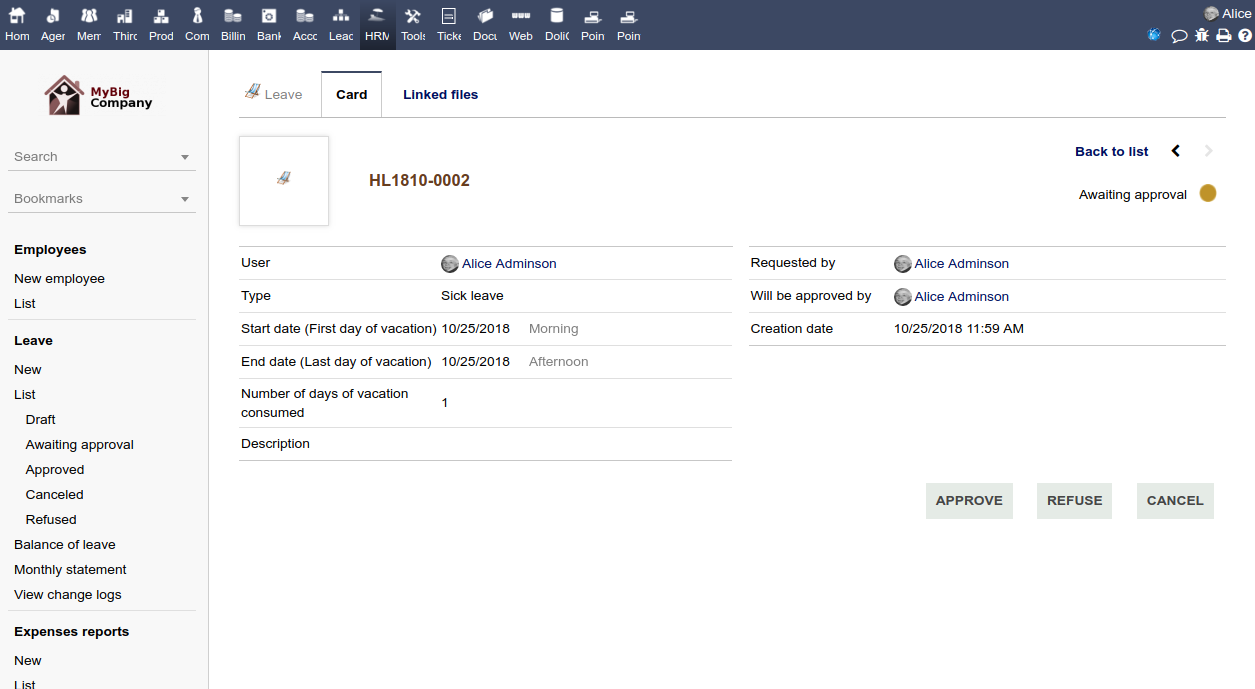
Approve or refuse each leave request


As a supervisor, you will receive an e-mail which contains a direct link to the leave request record of your subordinate. You can use the link to navigate into the system and accept or reject the leave request. The employee will get a notification informing him or her about the status of the leave request.


Analyze and update the balance of leave/holidays


The application will update automatically (or not), the balance for each type of leave/holidays.


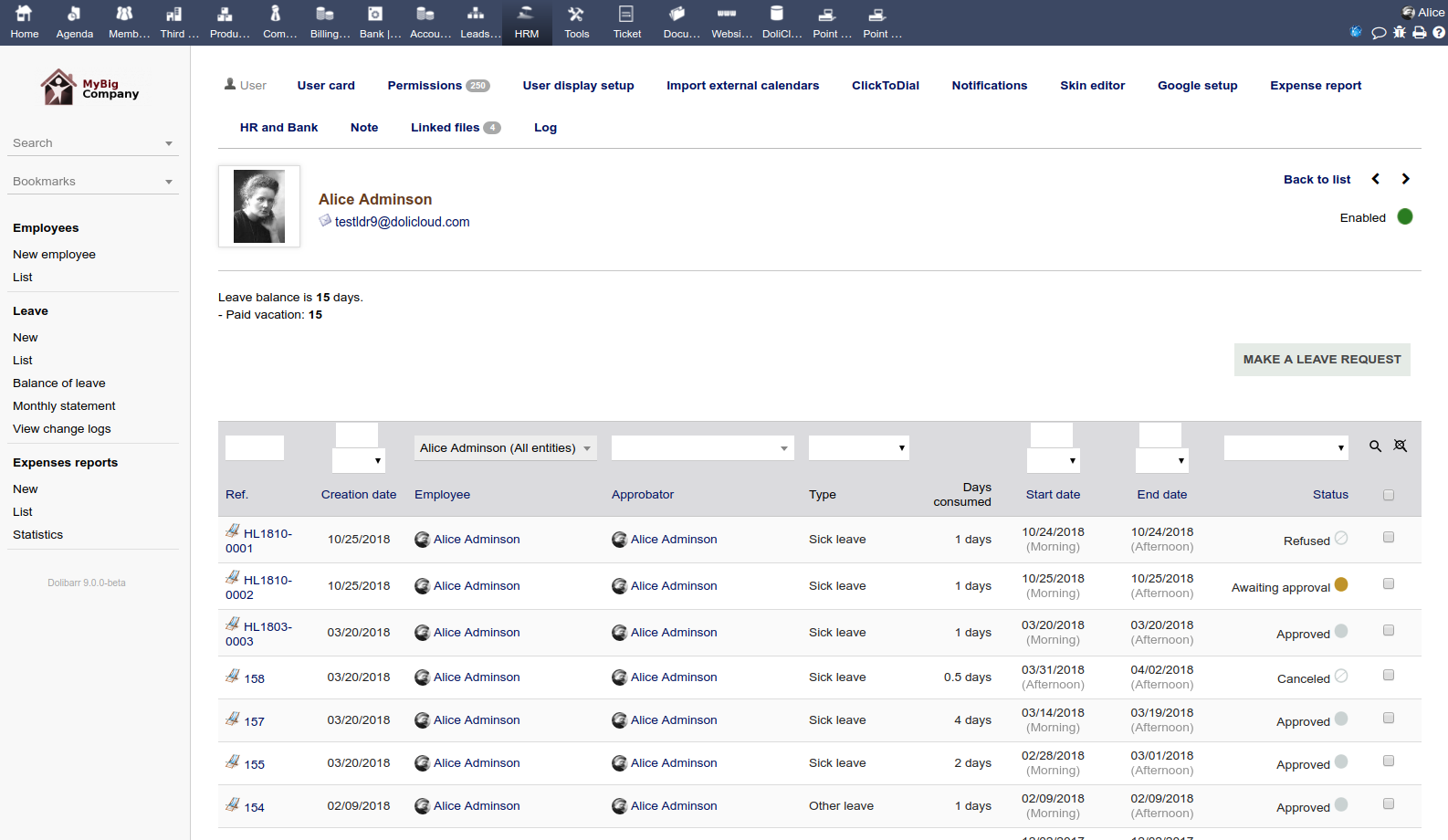
List and filter leave requests


List and filter all leave requests according to their status, date, employee, or any other property. Export your data into text files.

Get a monthly statement of leave requests.

As a Human Resources manager, edit the balance of each user, for each type of holiday or leave, at any time.


Track leave requests and remaining leave/holidays


As an employee, consult the status of all your leave requests and your balance of remaining leave/holidays.


Timesheets


Enter the time spent on user-friendly timesheets. See the impact on the project's profit.


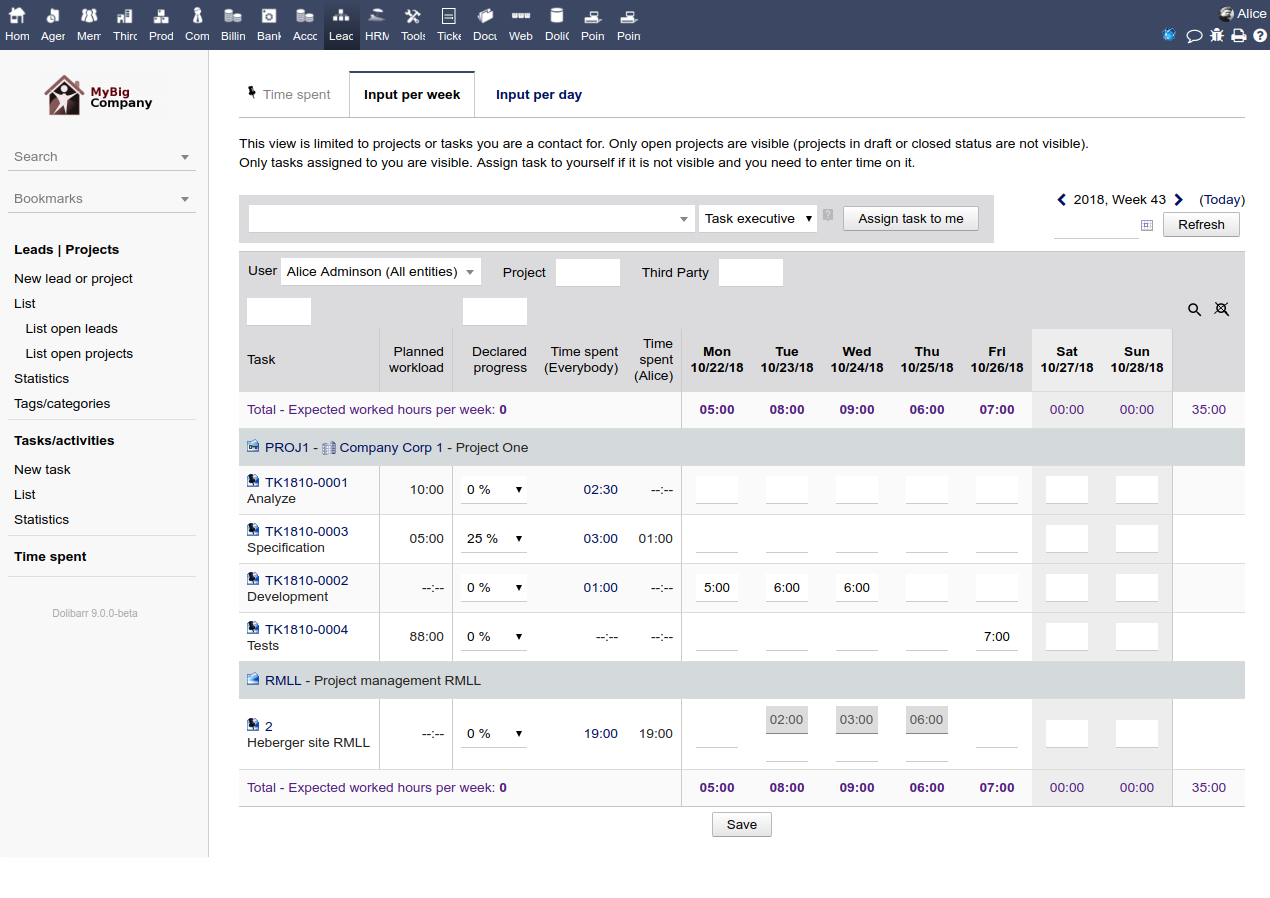
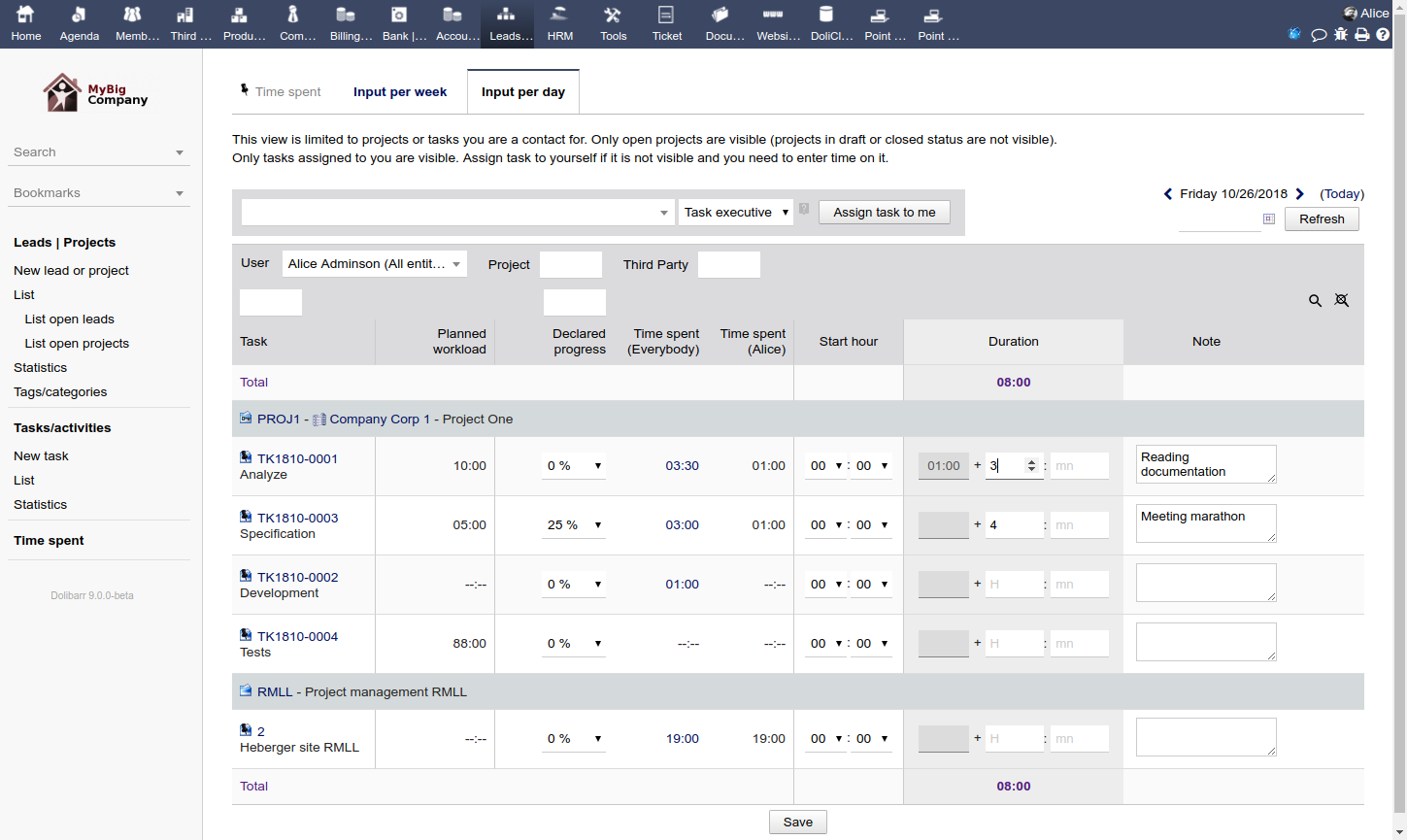
Fill your timesheet using the interface that suits your needs.


Several solutions are available to enter your timesheets, from a weekly grid, to a daily grid and monthly grid...


Input per week

Input per day
or from the project , or from a specific task...


Enter the progress (optional) at the same time that you enter the time spent on a task.


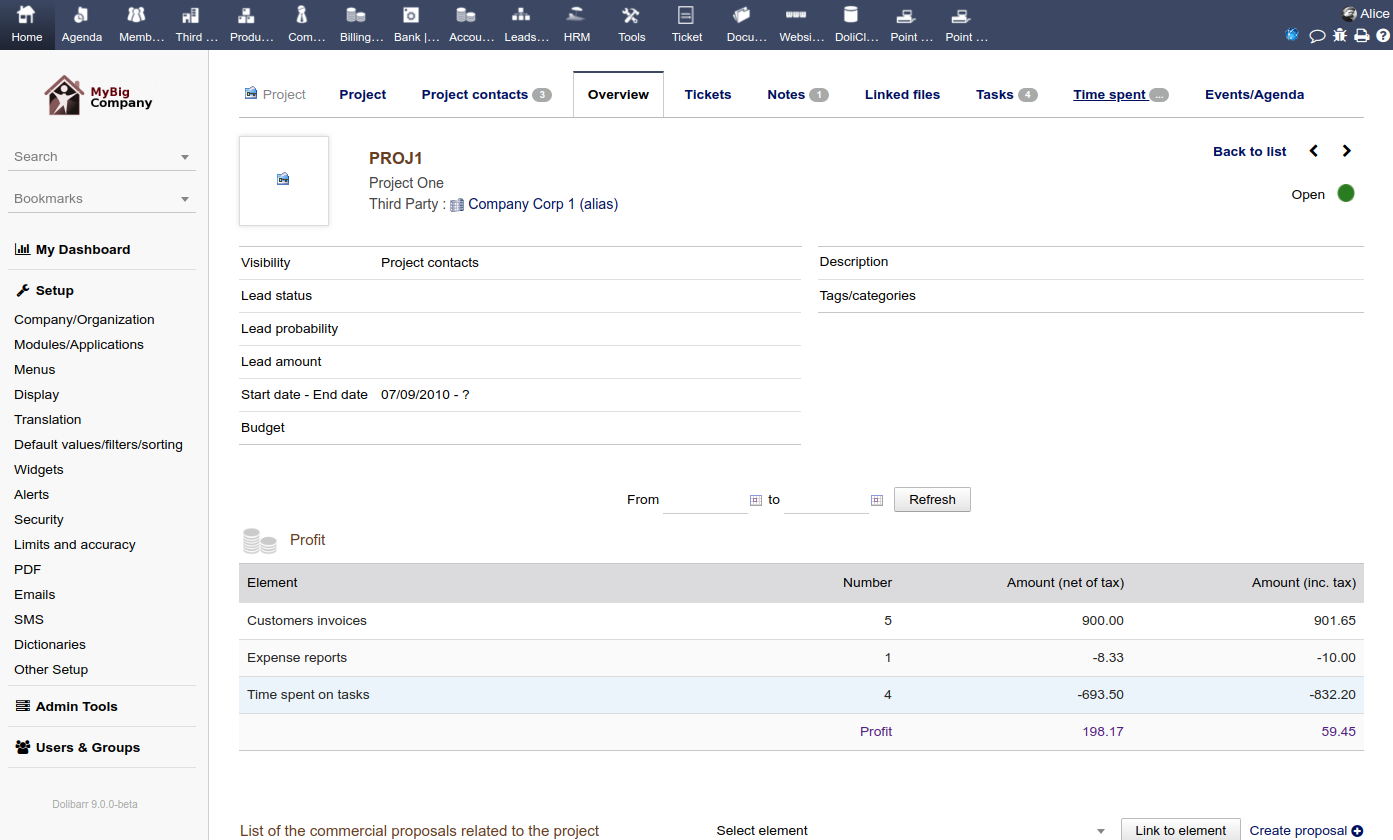
See the impact of time spent on the project's profit


If an hourly rate has been defined for the user on his or her user record, then the time spent is automatically converted into your currency and this is included into your project's profit overview.


Analyze and Export your timesheets


Use the Export module to export the timesheets of users and projects.
Review the predefined reports, or connect your data analysis tools directly to the database in order to perform an accurate analysis of your projects.


Recruitment


Define your job positions, publish them, track applications.


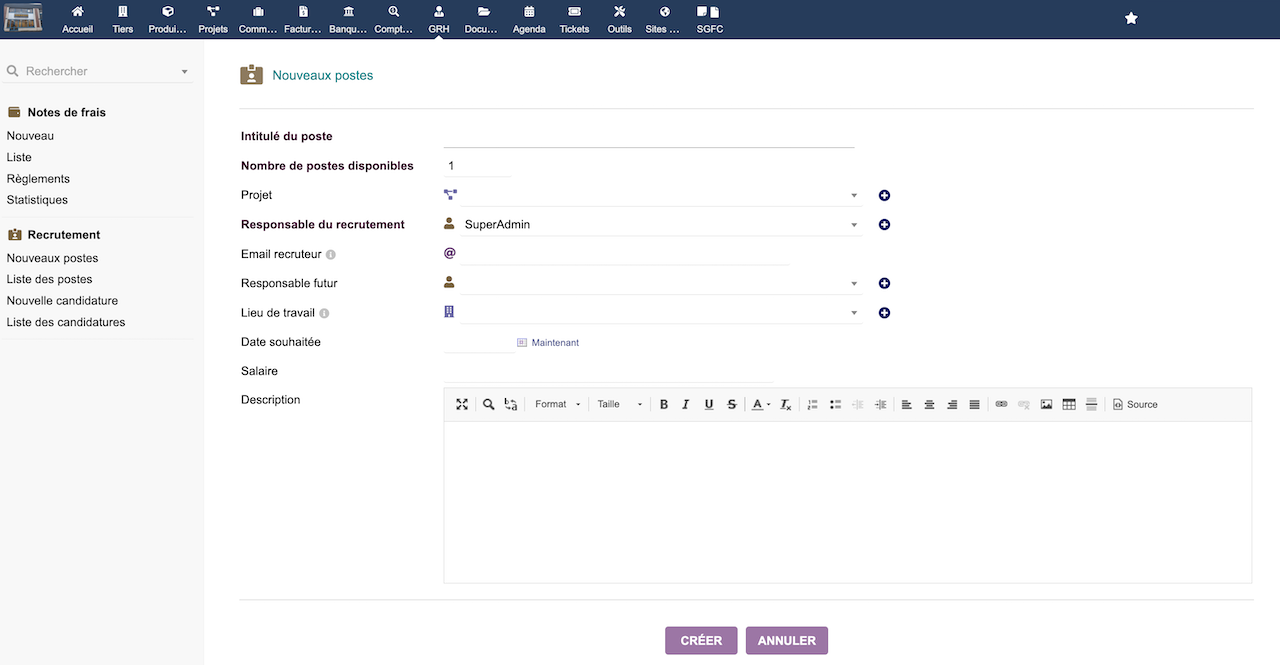
The module recruitment is designed to manage the recruitment of your new employees.


Define Job positions


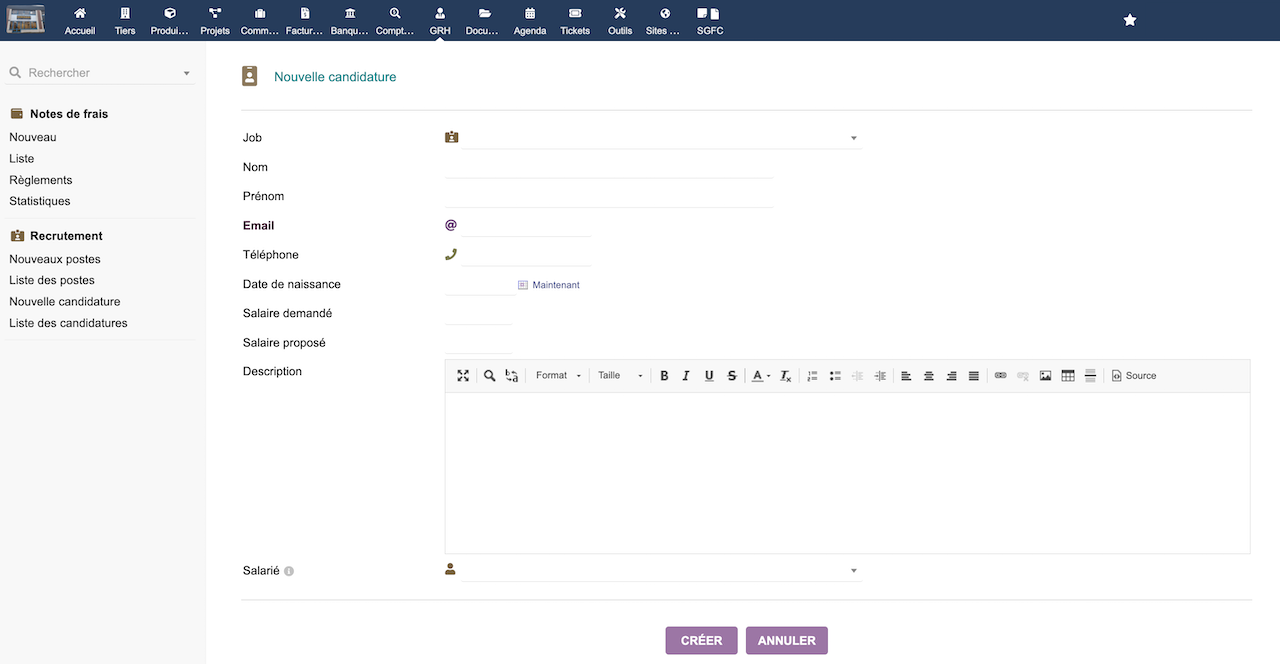
Enter the information for your new job positions.


Publish your open job positions


A public page is available to publish all your job positions.


Manage the recruitment process


Record all applications, follow and update the status of each applications.


Record applications automatically with the Email Collector


You can setup the Email collector module to automatically create applicants and record all applications for a job position.

All emails exchanged during process can also be collected and linked to the application.


Membership management


Manage the memberships of an association or a foundation.


Association team management


Provide access to managers of your association to manage members, memberships, volunteers or partners. Your association's information will be up to date and in compliance with the data protection regulations of your country.


A membership database


In addition to the functions of invoicing, purchase, online payments, follow-up of donations, stock management or event organization made by traditional modules, you can also follow your member base and memberships.
If necessary, communicate the public registration page to collect new membership requests so that the member file is automatically created and pre-filled.
Give access to the application to your members if you wish, so that they can read or update their information themselves.


Automated Membership Management


Send automatic reminders for membership renewals, collect them online without administrative effort. Manually send Emails or Emailings to your members.


Personalized management


Personalize your member files according to your association.


Collect payments


Collect the payment of membership fees or registration for an event (shows, congresses, etc.).


Products and Services


Manage your product and service catalog, and your prices and margins


Manage your product and service catalog


Create and update your product or service catalog. You will be able to reuse the catalogs in all the other features available in the application with one click (proposals/quotations, orders, invoices, and stocks). Manage the sale or purchase status.


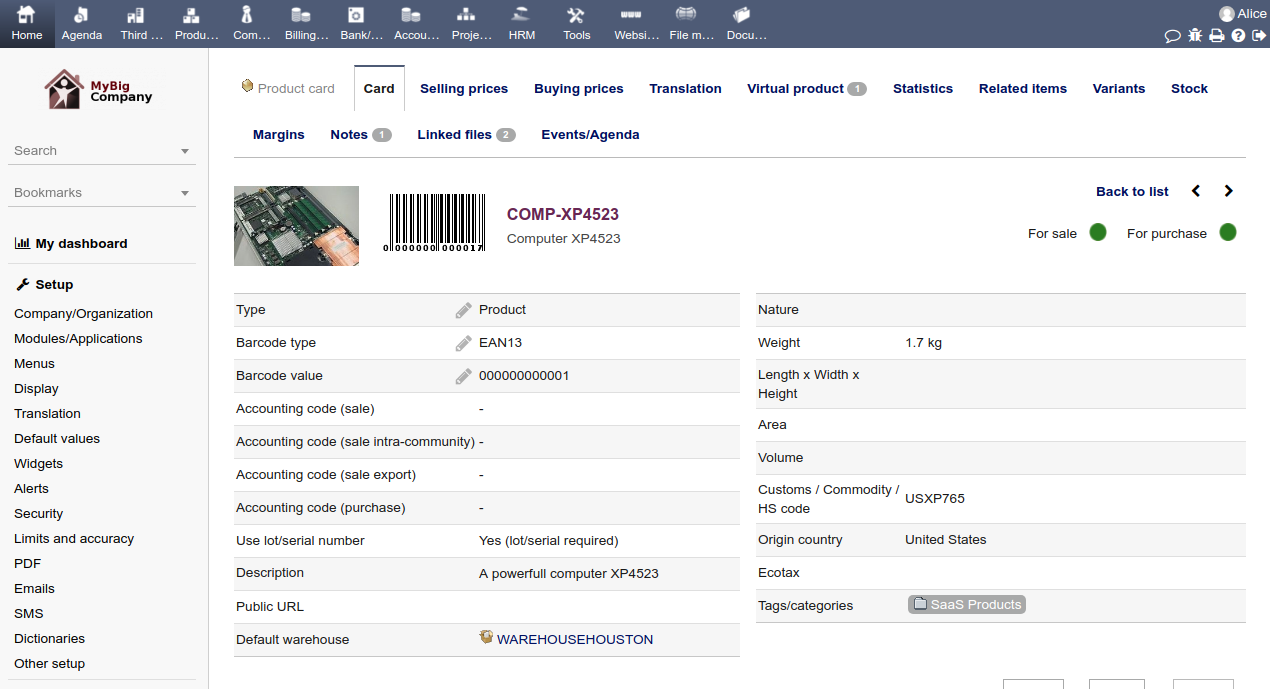
A lot of native data can be defined on the product and service cards such as sale prices, tax rate, duration or dimension, cost price, accounts, accounting, stocks, notes or add your own personalized custom fields.... Describe your products or services in any language of your choice. Any data can be reused in other modules, thus saving you a lot of time.


Attach any files (Pictures, Photos, PDF notices, ...) to your products.


Clone Products and Services to create new ones in just a few clicks, or reuse the Variant feature to generate variant products (similar products with a different color or size, for example)


Manage your selling and buying prices


Define your selling and/or buying prices, and keep a history of all your changes. Define your prices per customer segment, per quantity, or per customer.


Track the performance of your products or services

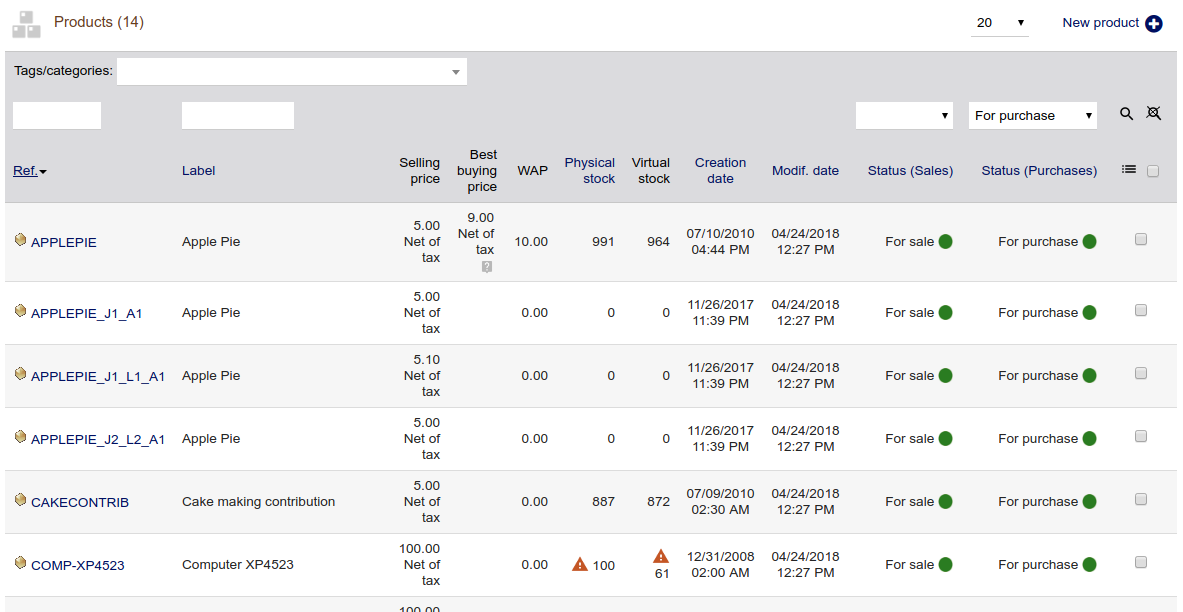
Filter your product catalog on any property of your choice.


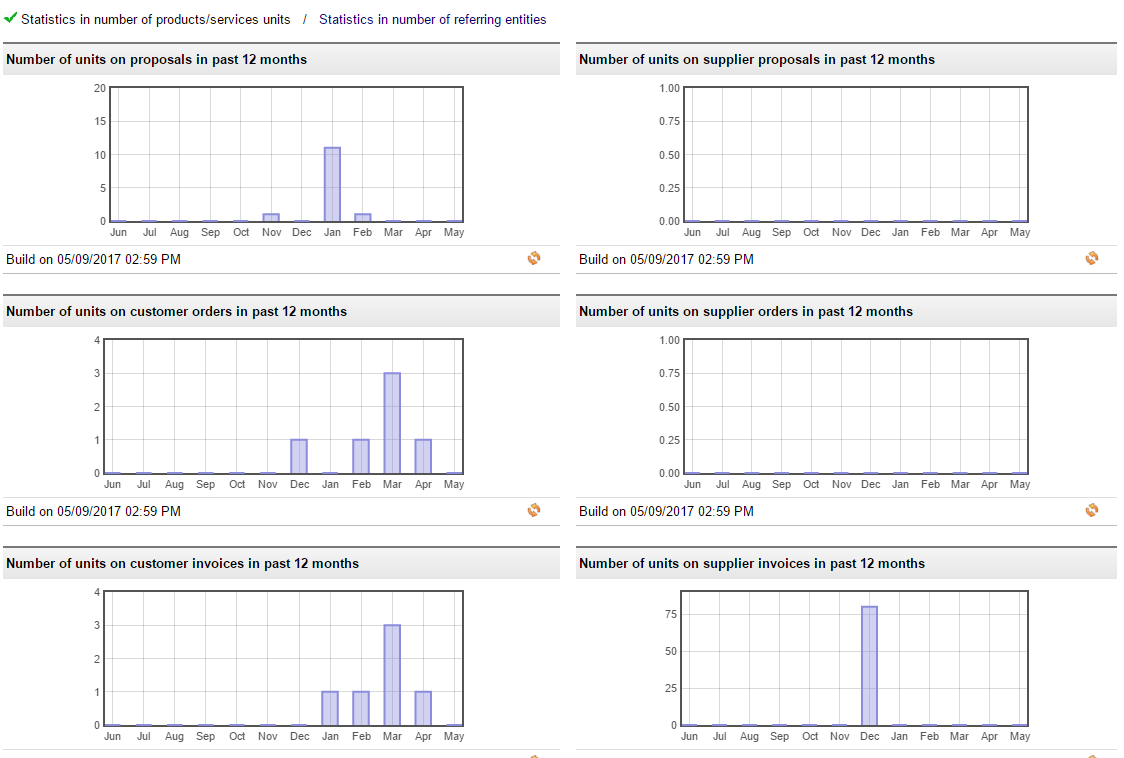
Predefined and dynamic statistical reports allow you to view graphs, charts, and tables showing you the quantity and amount of products and services offered in proposals, orders and/or invoices.


Margins


If you use the purchase features, the margins module may help you to review financial data and margins for each product or service.


And more...


Kit/Virtual products

Define virtual products with quantities of sub-products, so that when the stock of your virtual product is modified, stocks of sub-products will also be modified automatically.

Variant products

If you want to sell variants of a product (for example, a dress can be pink or blue, size S or XL etc.), use the variant editor to create your product variants quickly and easily.

*****

Stock, lots, and serial management


Choose the way Dolibarr will manage your stock automatically for you. Decide at a product level if you need to follow serial or lot numbers, by using the Stock module and let the application calculate your Weighted Average Price (WAP).


Stock and Warehouse Management


Manage stock and warehouses (emplacement)
If you need to, you can add support for Lots or Serial numbers


Warehouses


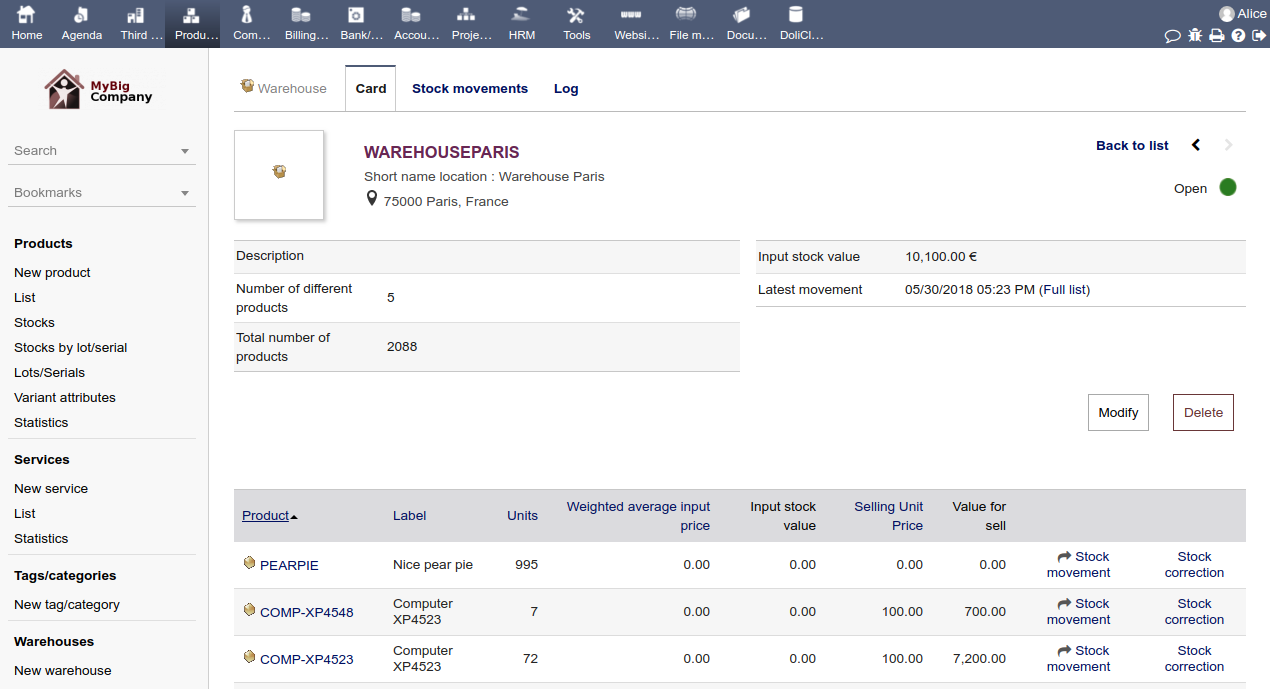
Organize your warehouses and emplacements. Use them to store your products and define stock movements. Track you stock based on product reference, warehouse, date, and/or lot/serial number.


Get an updated visualization of your stock using Weighted Average Price calculation or Standard calculation.


Stock Movements


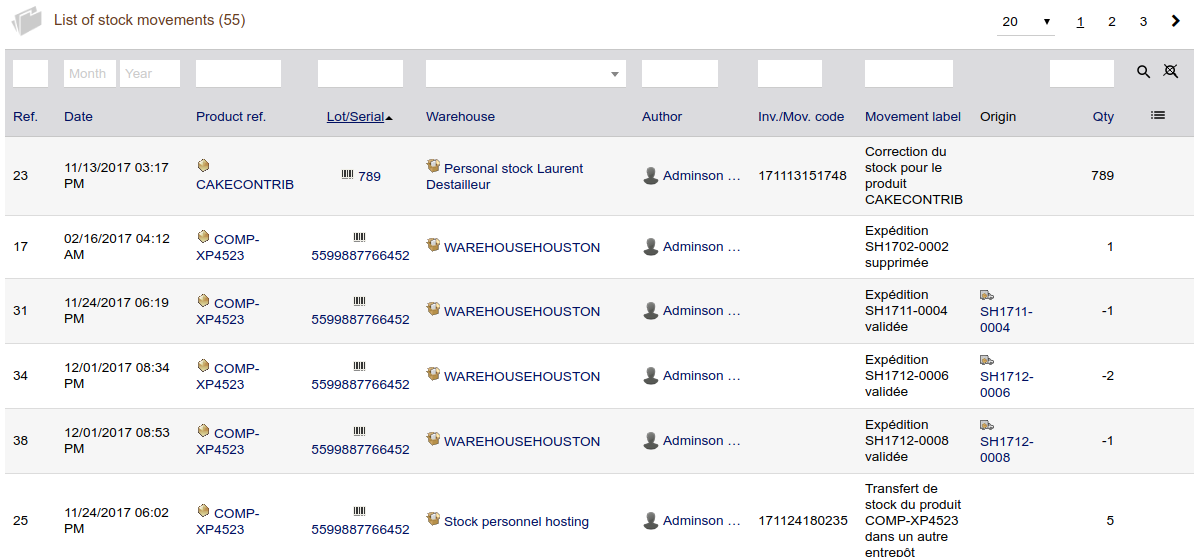
Record your stock movement manually and/or configure your application to increase or decrease your stock automatically (on invoice, on order, or on shipment validation...)


Retreive any stock movement in your log record


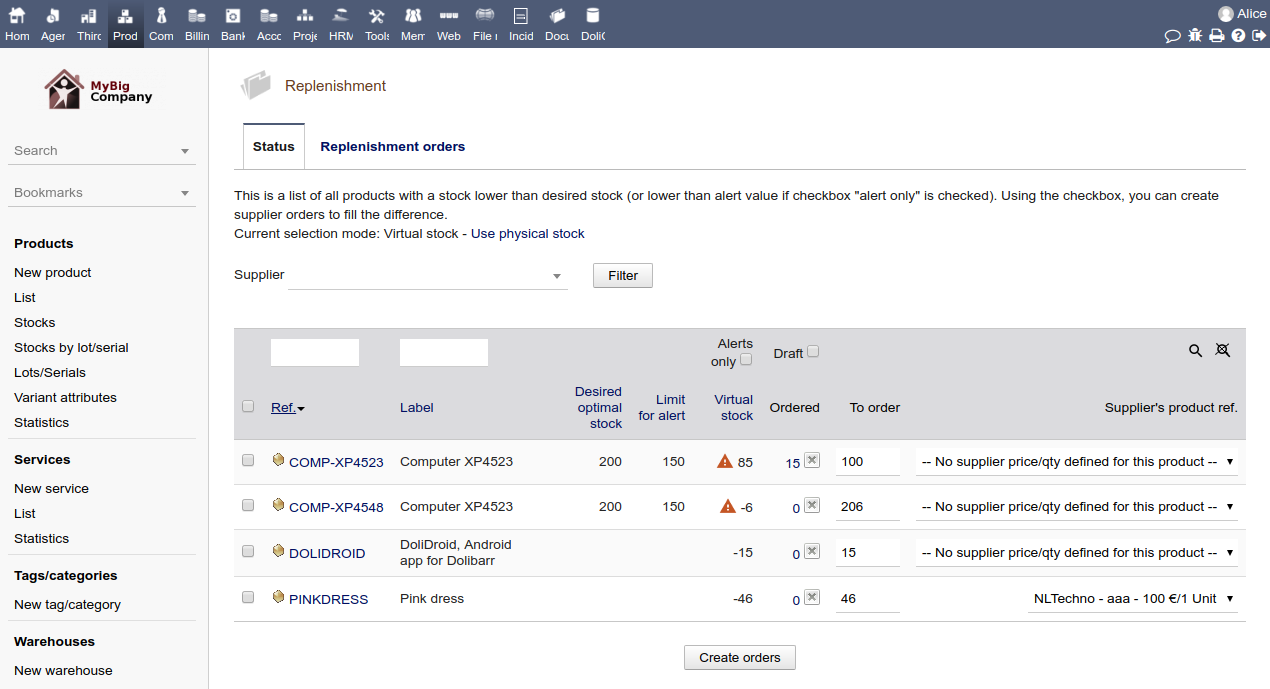
Automatic virtual stock and easy replenishment process


Take your stock workflow setup into consideration to always display the real stock or virtual stock (ie. stock position once all your customer or supplier orders are shipped).

Use both your real stock and virtual stock to make your replenishment in just a few clicks.


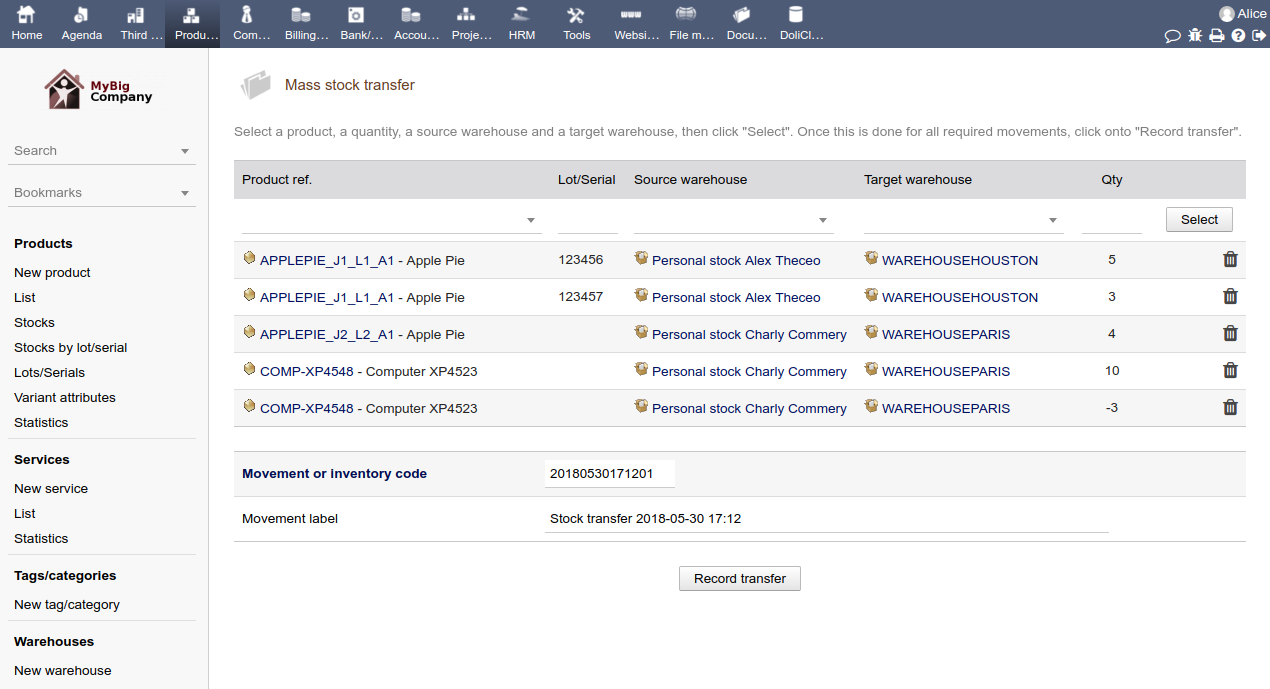
Make mass stock change, inventory or transfer in one step


Use the stock transfer page to record in one transaction, several stock transfers.


Define a desired quantity for each product so that the replenishment tool will be able to generate supplier orders automatically to restore the stock. See the page Purchase/Approvisionning.


Lots and serial management


If you need to, you can use the Lot/Serial number management. Products defined to be managed by Lots will require a lot number for tracking. You can also set properties to your lot like Sell-by date or Eat-by-date.

Retreive details of stocks and movements for a particular lot at any time.


Purchase And Supply


Manage your Purchase Order Workflows, Restock your Warehouses.


Purchase Orders


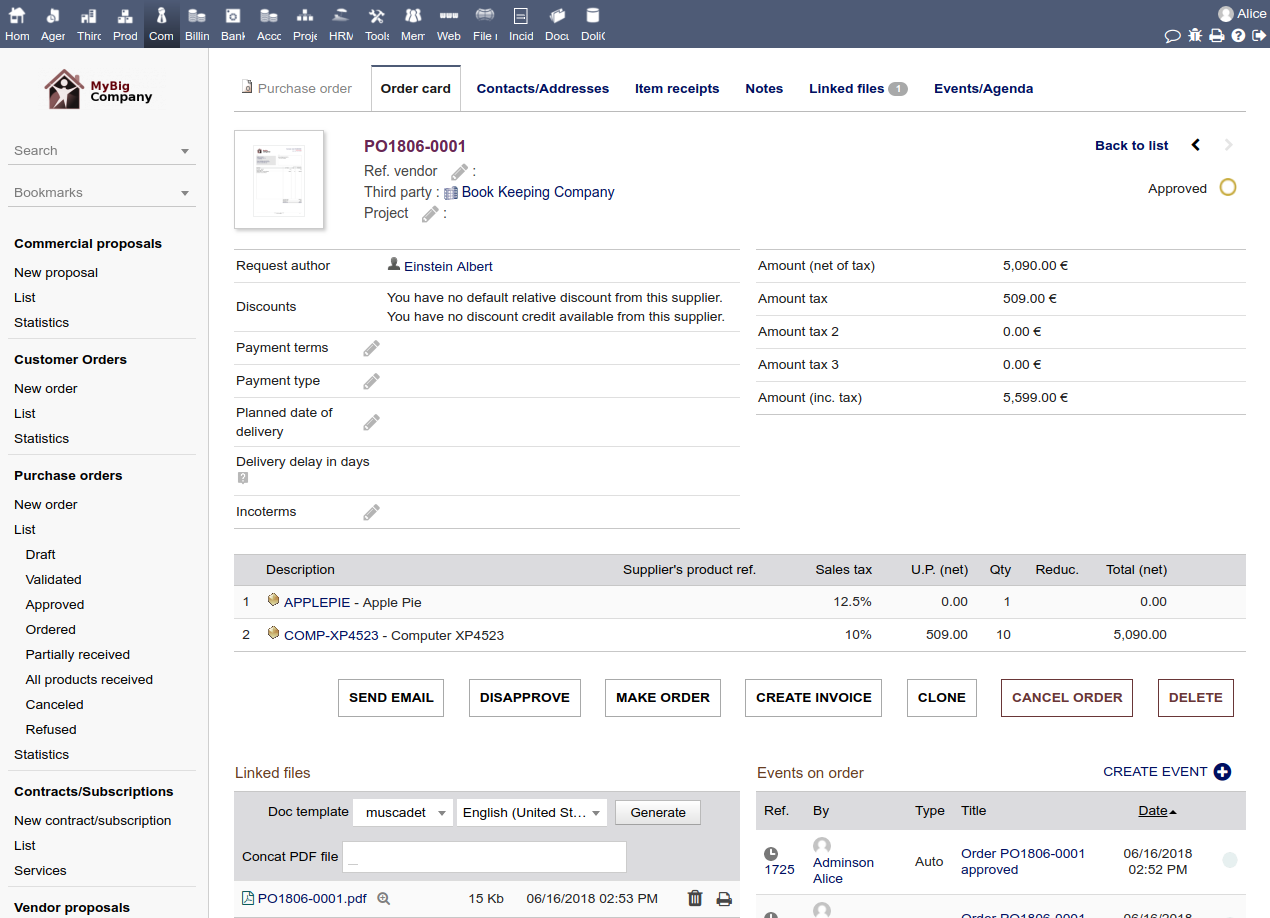
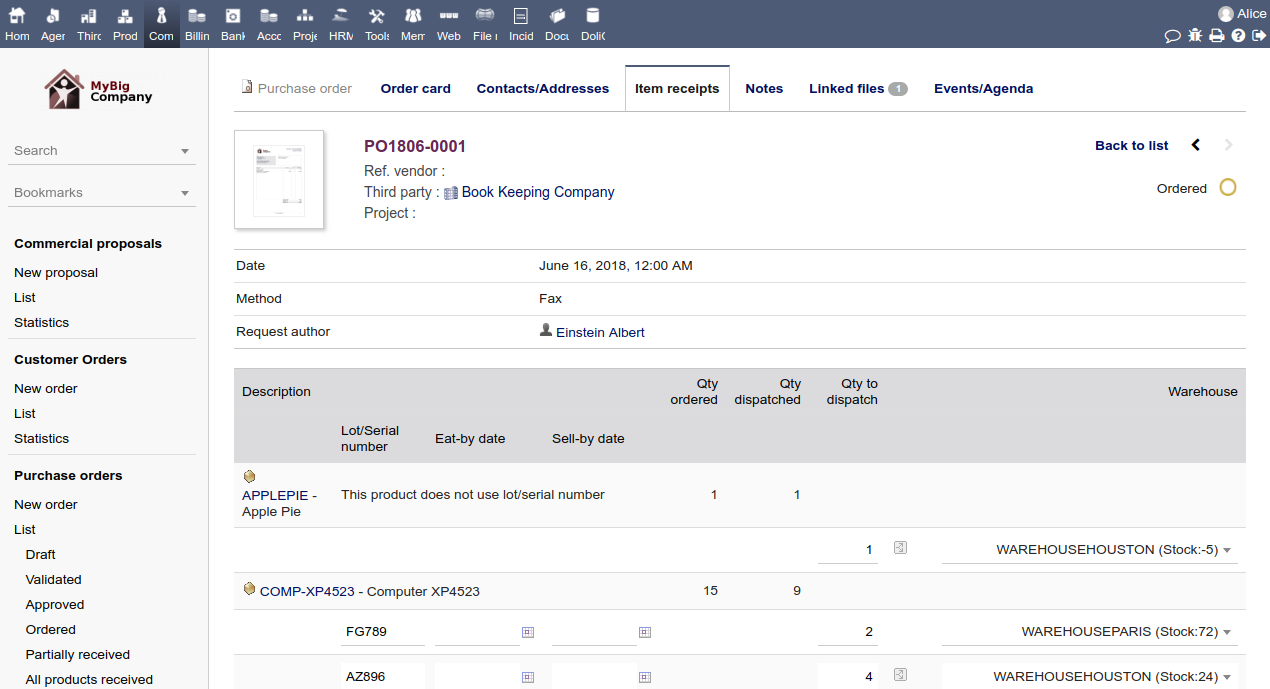
Create Purchase Orders, Approve, Receive and Bill your Purchase Orders .

Grant users and groups permissions on the workflows. Define the thresholds which will automatically trigger email notifications when they are breached.


Receive your Products


If you are tracking your stock, then use the stock dispatching wizards to receive products in your warehouses.


The status of your stock is always kept up to date. Calculation of Weighted Average Price can be done automatically.


Procurement Management


Use the wizard to provision and stock your warehouses based on defined optimal quantities. Take into consideration, open customer orders and open purchase orders and automatically calculate the correct quantity to buy. Generate your Purchase Orders automatically.


Shipments


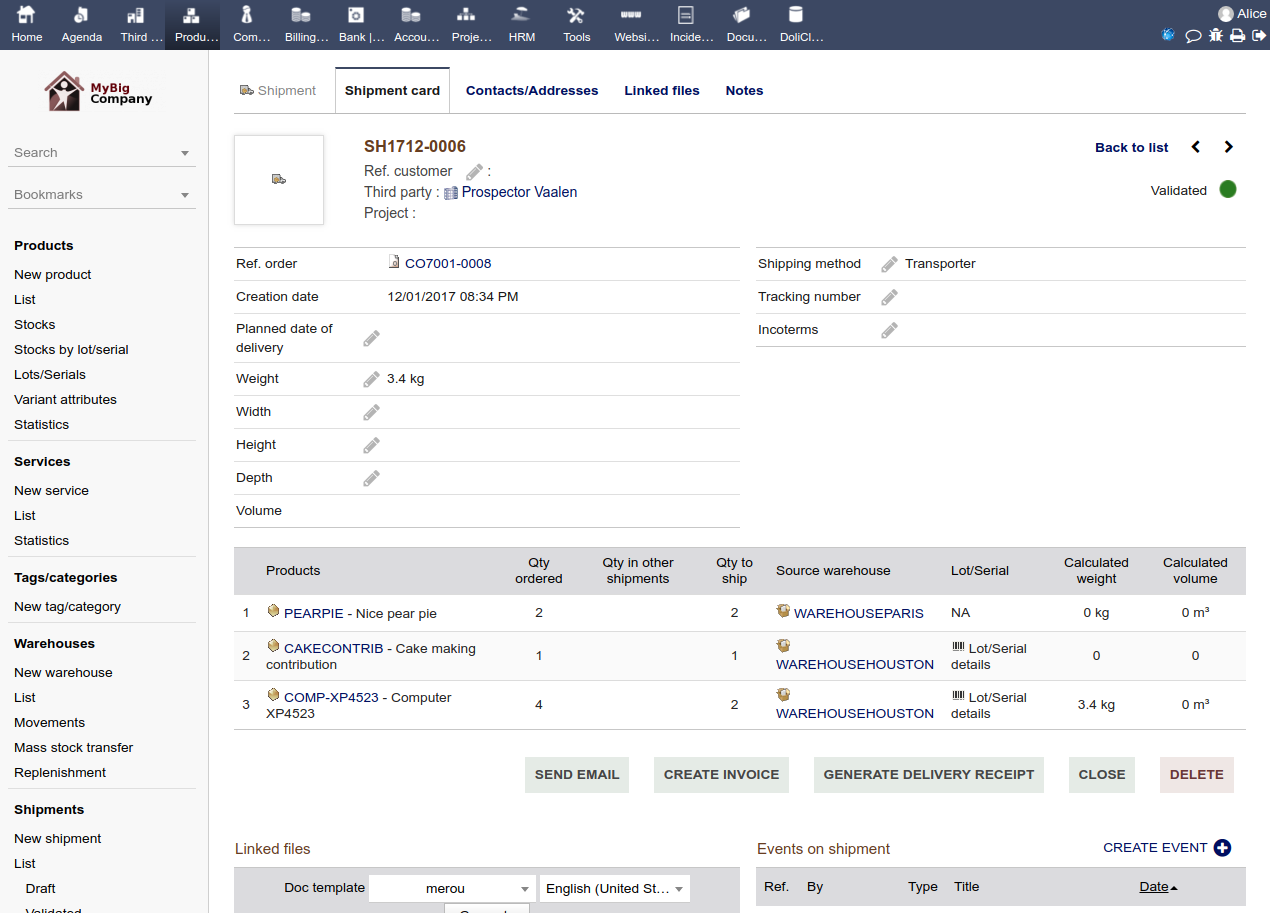
Use the shipping module to track your picking list, orders and quantity to ship or shipped


Create your shipments in one click from any order. Compare the quantity shipped with the quantity to ship.


Define the planned date of delivery for each of your shipment so you can process them by priority or follow late shipments. If you need more information on your shipment, you can setup application to manage any other custom fields you need.


When creating a new picking sheet, weight or volume of your items can be both calculated automatically from predefined product data or manually defined.


Your stock is updated automatically when you make a new shipment. And record of your stock movement are directly linked to the shipment.


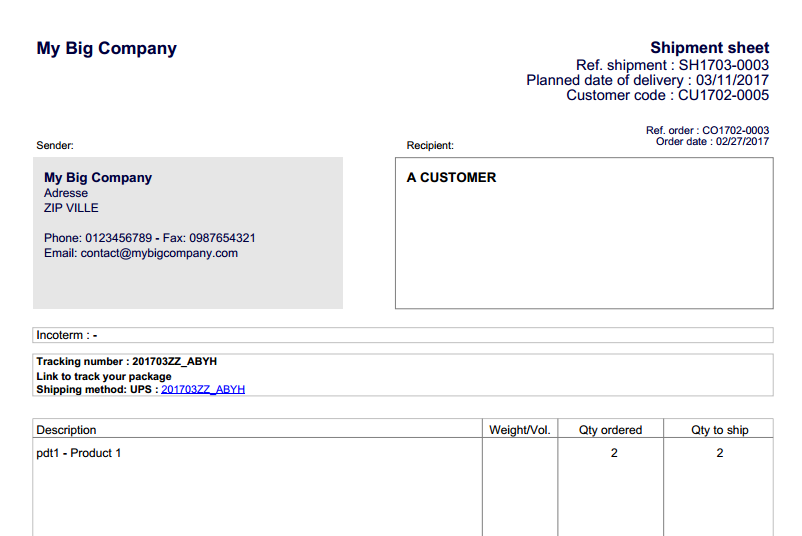
Easily track your shipment with a direct link to the transporter tracking tool that is automatically filled.


Generate the PDF of the shipment sheet and print it for your transporter or send it by email directly from the application to any partner.


If necessary, you can also manage / generate a delivery receipt.


Manufacturing


Bills Of Materials and Materials Resources Planning


BOMs (Bills Of Materials)


Create your nomenclatures (BOMs) to define how to consume raw products or services to produce manufactured products (Quantity to consume, efficiency, stock impact, ...).


Screenshot of a Bill Of Materials (BOM) in Dolibarr


Manufacturing Orders


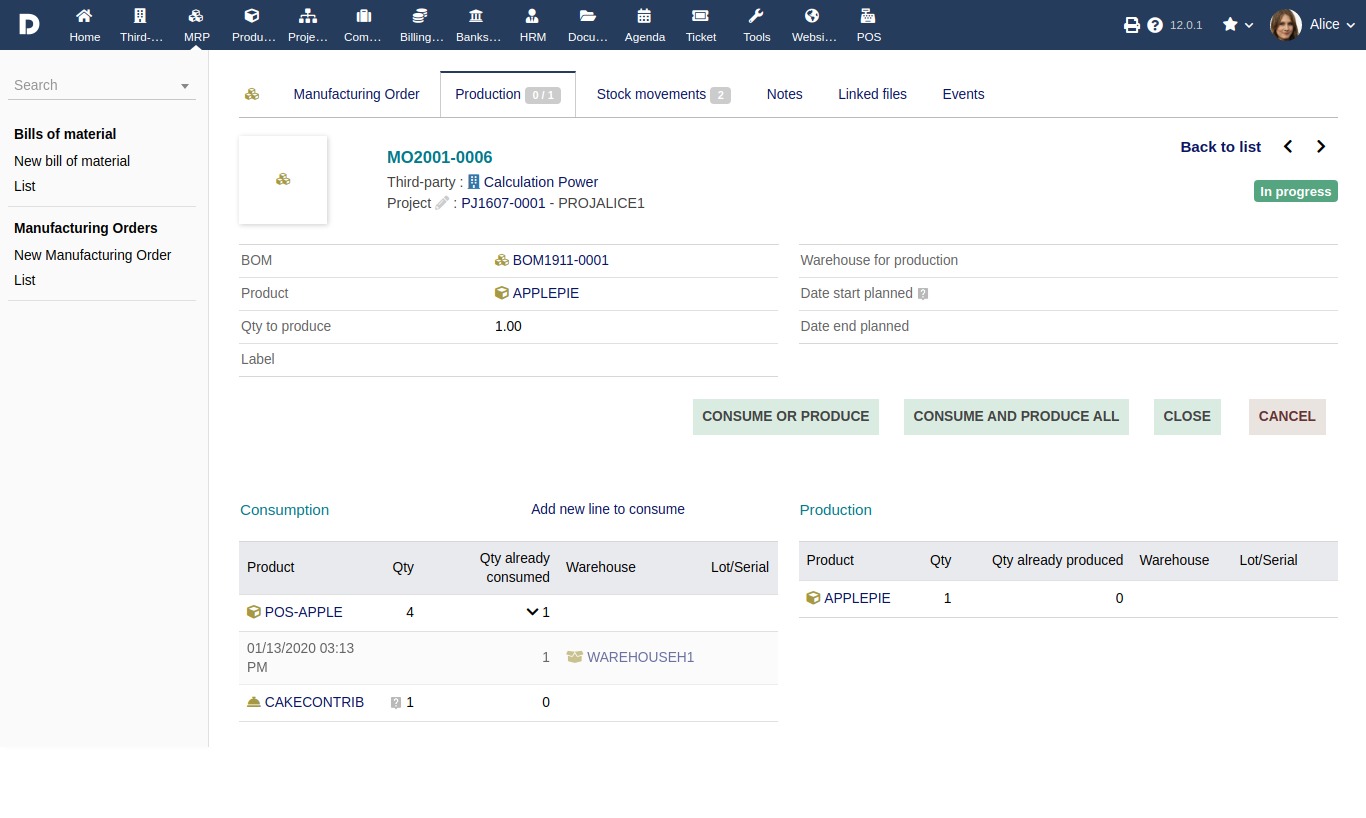
Reuse the predefined BOMs to generate your Manufacturing Orders.


Produce your Manufacturing Order in one or several steps.


If the stock of produced product is being increased and the stock of consumed product is being decreased automatically, you can get a view of all such changes in your history.


The application will calculate, in real time, the virtual stock taking into account all the open Manufacturing Orders.


Screenshot of a Manufacturing Order (MO) in Dolibarr


Lots and Serial Management


If you need to, you can activate the Lot/Serial number management feature. Products defined to be managed by Lots will require a lot number to be manufactured.

Follow your production by Lots and retreive details of stock movements for a particular lot at any time, starting from the production process to the customer shipment.


Export your Manufacturing Orders with the Export module to reuse them with external tools, or connect your existing BI suite directly to the open database for Big Data analysis.


Billing and Payments


Manage the invoices and payments of your customers and suppliers


Create your Invoices


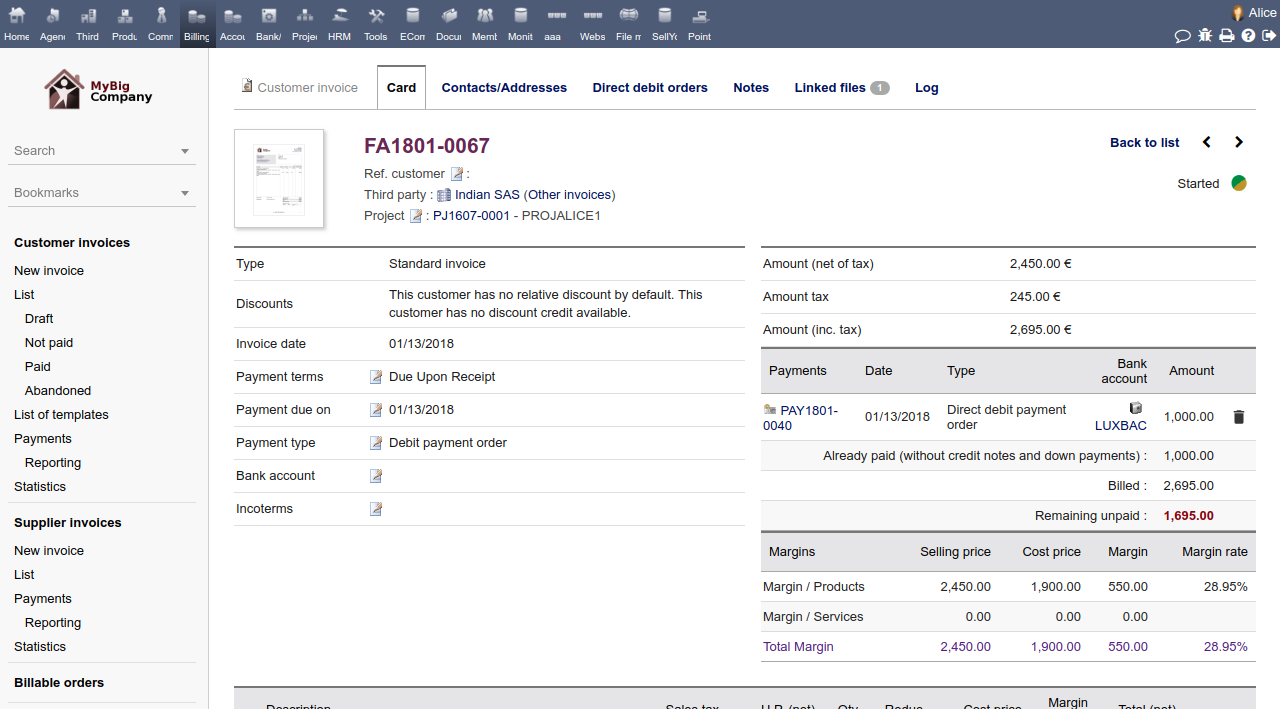
Create your invoices common invoices, down payments, credit notes) from scratch or, depending on the modules you have enabled, you can also generate your invoice from your proposals (Proposal module), your orders (Order module), your contracts (Contract module) and / or interventions (Intervention module). If the module Margin is enabled, margin can be calculated from the best supplier, the cost price or the average weight price of your products. You will get margin statistics per product, customer, date etc.


Reuse predefined products to save you time, or enter full content manually.


If predefined fields do not match your requirements, add your own custom fields of any type (string, amount, date, checkbox, combo list etc.) to the invoice form.


Your invoices can be generated automatically using the recurring template invoices.


The document of your invoice (PDF, ODT etc.) is automatically generated and updated.


Send your invoice and manage payments


Send your invoice via Email directly from the application. Use predefined email templates so that the email content is automatically filled in.


Generate a Direct Debit SEPA file for automatic bank payments in batch and follow the integration steps specific to your bank. Close your invoice by automatically changing it to the paid status once the bank has processed your SEPA file.


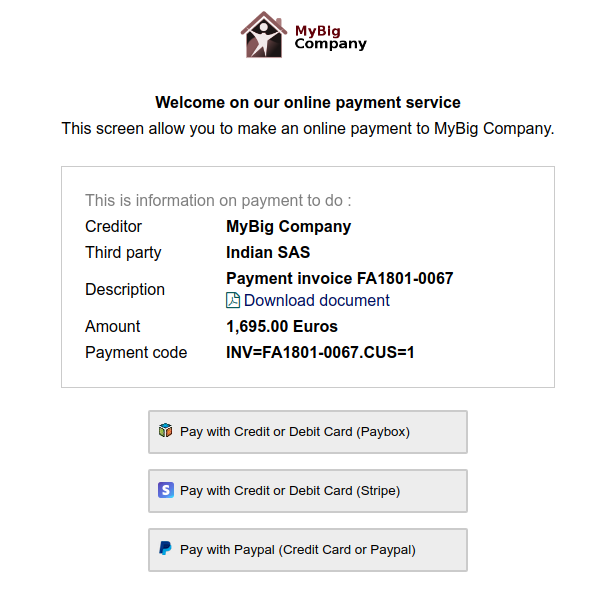
Provide your customer a link to pay online using Paypal, Stripe, Paybox, PayZen, etc.


Send automatic reminders by emails of your unpaid invoices.


Reuse down payment into another invoice to reduce the amount to pay or reuse a credit note into another invoice to reduce the remaining amount to pay.


Follow the status of your open Invoices


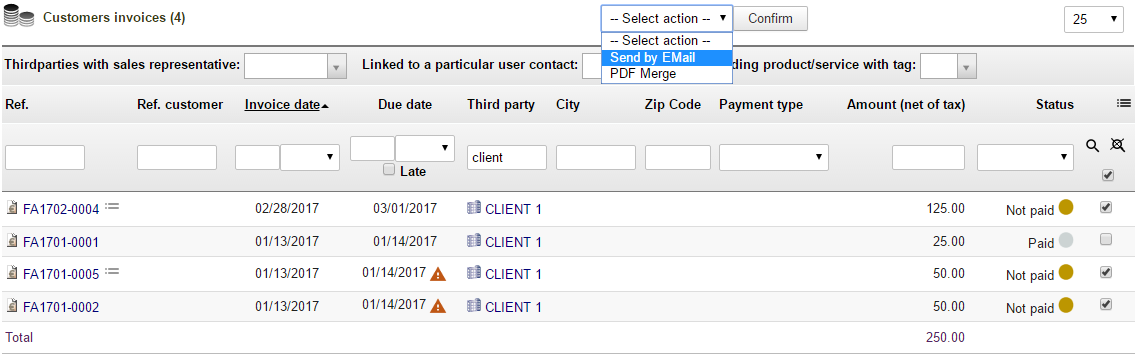
List and display all your orders. Choose which information you want to see in your lists. Filter and sort based on any criteria.

With the mass processing functions, validate, classify or manually send your reminders in one click, or let the planners do it for you automatically.


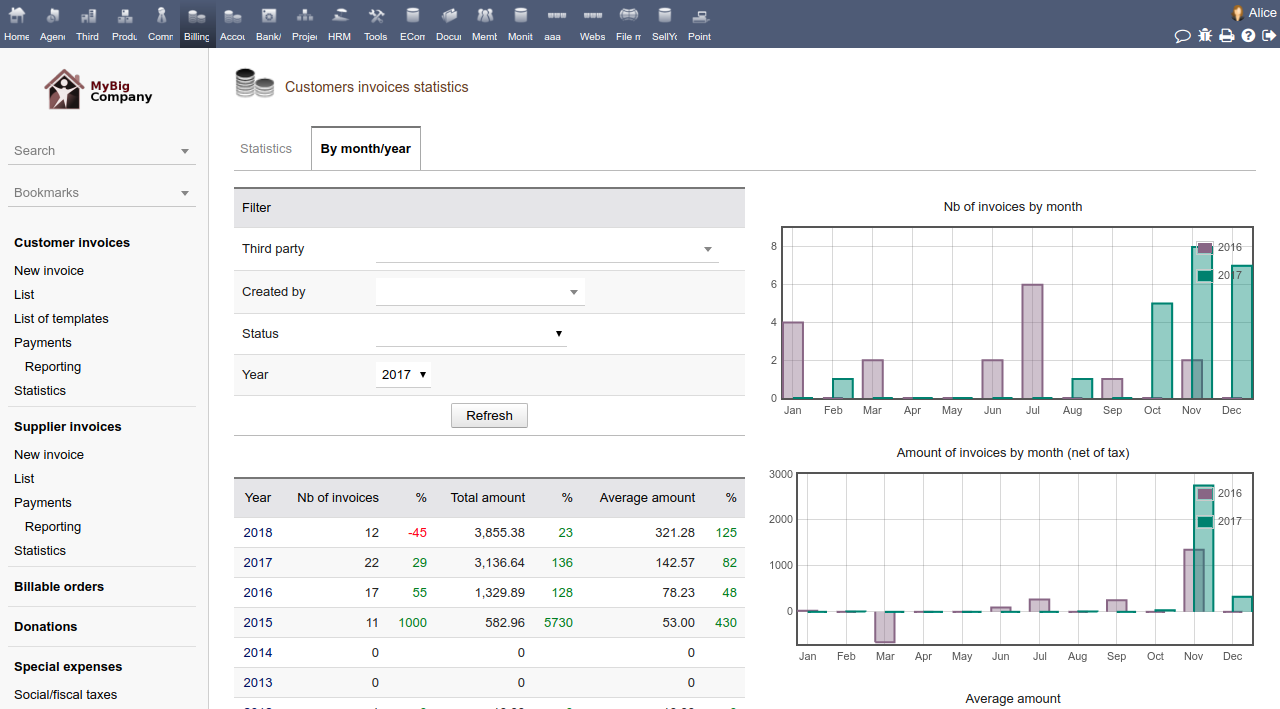
Analyze your billing performance


Use predefined statistic pages to get useful information about the performance of your sales representatives.


Reuse your invoices with other modules


Export your invoices into the ledger of the accounting module to get your accountancy done automatically in just a few clicks.


Export your Invoices and payments with the Export module to reuse them with external tools, or connect your existing BI suite directly to the open database for Big Data analysis.


Banking and Reconciliation


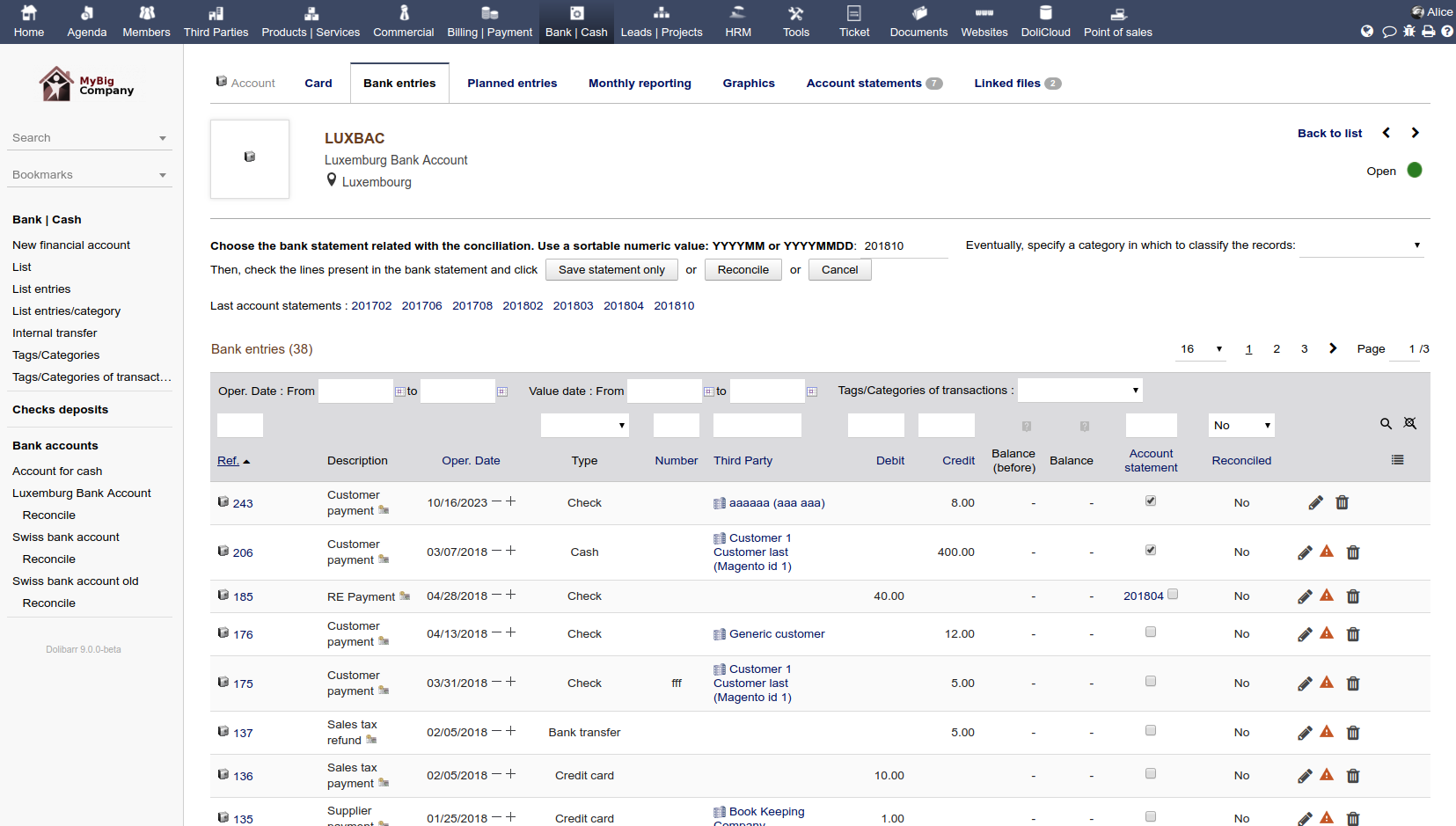
Perform reconciliation to detect any missing or typing errors in payment records


Make the reconciliation of your bank account from the same menu as your bank entries. Use filters to mark several line items at once as reconciled.


Get alerts when the number of records not reconciled becomes too high.


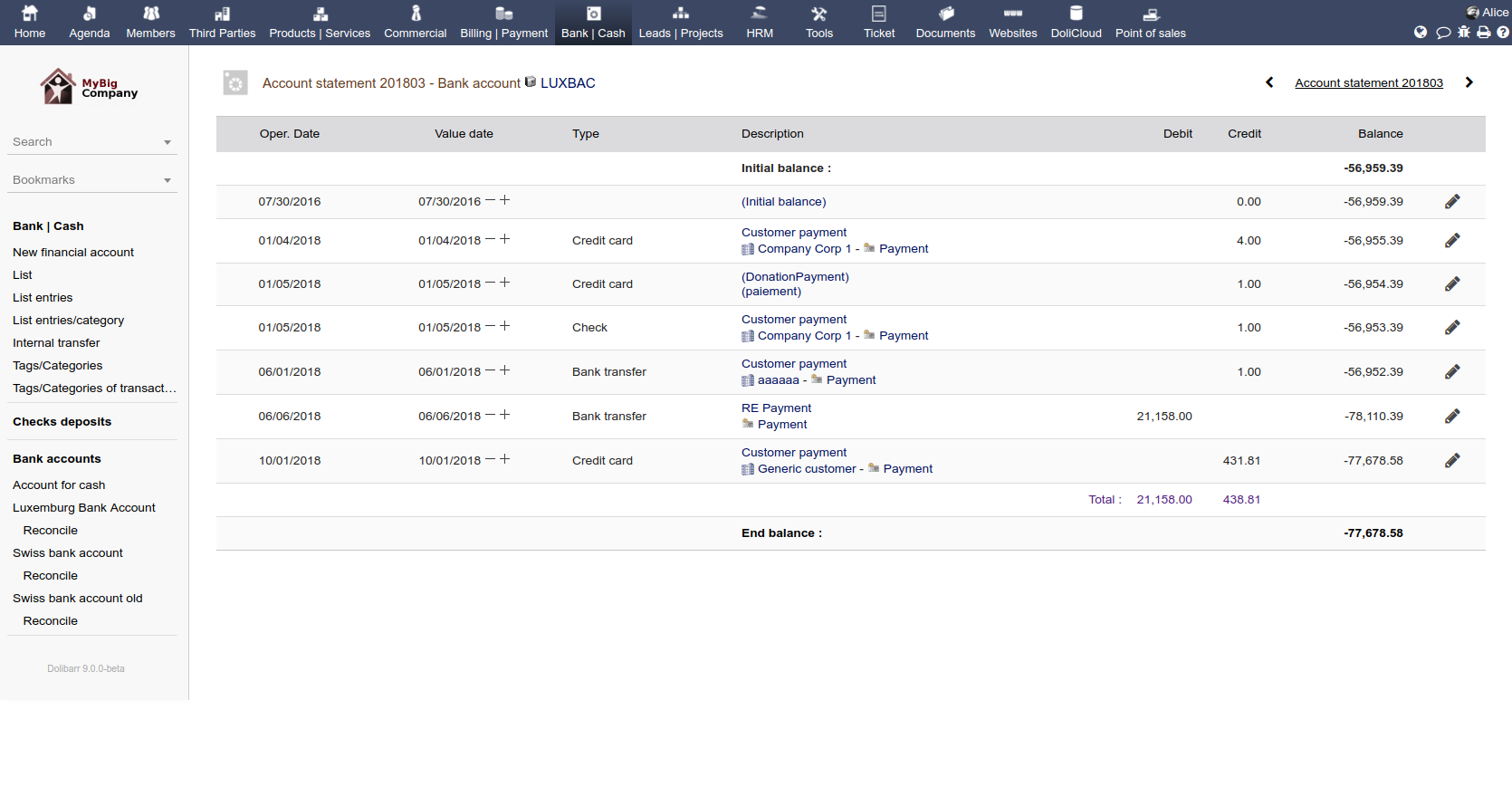
Maintain a history of your bank receipts and review them without having to leave the application.


Export your reconciled bank receipts for your accountant in one click.


Double Entry Accounting


Use all your data to automatically generate your ledger


Dolibarr has a dedicated and independent feature to setup your accountancy and dispatch all the data already recorded (products, sales, purchases, expense reports, salaries, ...) into your ledger tables. This means that your accountancy can be done in just a few clicks, with little to no knowledge of accounting and bookkeeping.


Setup your chart of accounts and your accounting number


Use a predefined chart of accounts or setup your own chart of accounts.

When you create a new customer, vendor, predefined product, bank account, vat rate, or type of expense report, you can set up the accounting number during the creation. Instead, if the users have no accounting knowledge, a bookkeeper can set them up in one step using dedicated setup pages. You can also mix and match these two methods.


Validate the accounting number before they are added into your Ledger


At the frequency of your choice, analyze all accounting records (sales, purchases, bank transactions, expense reports) and use the wizard to track input errors. Fix records manually if particular changes are required.

Add validated records into your Ledger.


Analyze your Ledger, balance, ...


Use predefined reports to analyze your accounting records. Track input errors, at the frequency of your choice, analyze all accounting records (sales, purchases, bank transactions, expense reports) and use the wizard to fix manually when particular changes are required.

Review and add validated records into your ledger.


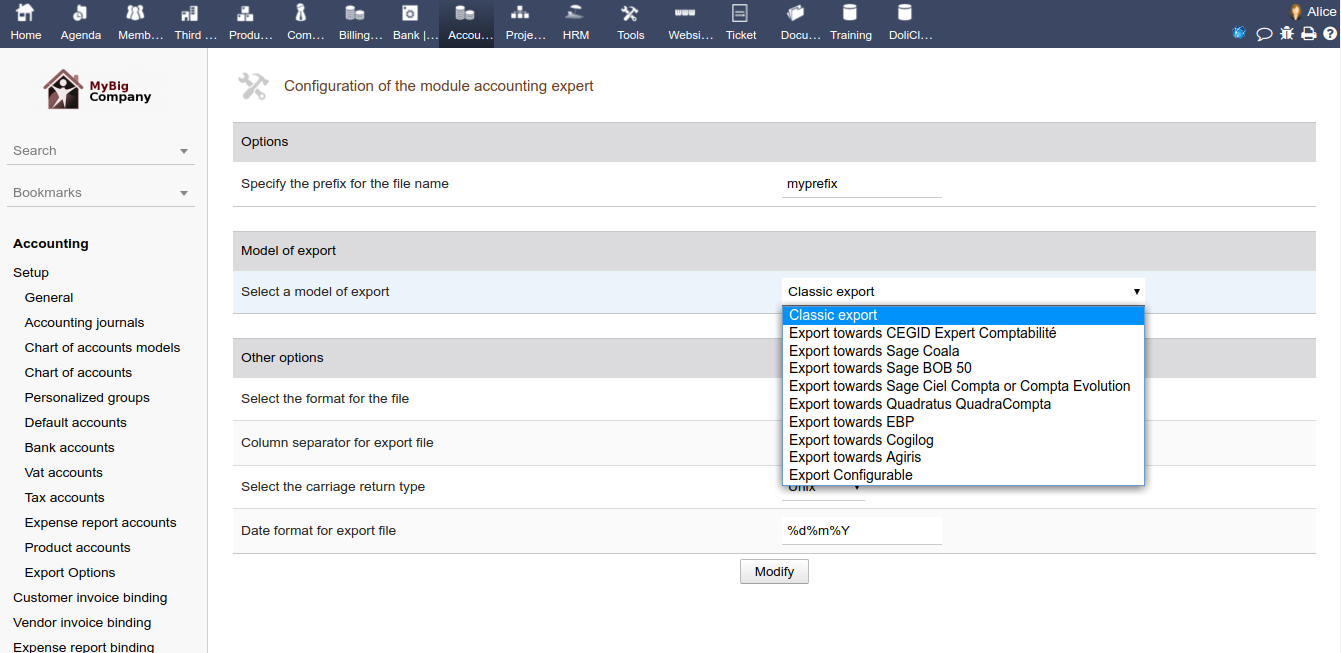
Export your ledger in the format of your choice


Once your ledger is complete, you can export the full set of records or just a filtered date range of records in a pre-defined accounting software format such as CSV, EBP, CogiLog, CEGID, SAGE etc.


Mass Emailing


Create and send mass e-mailing campaigns without any external tool


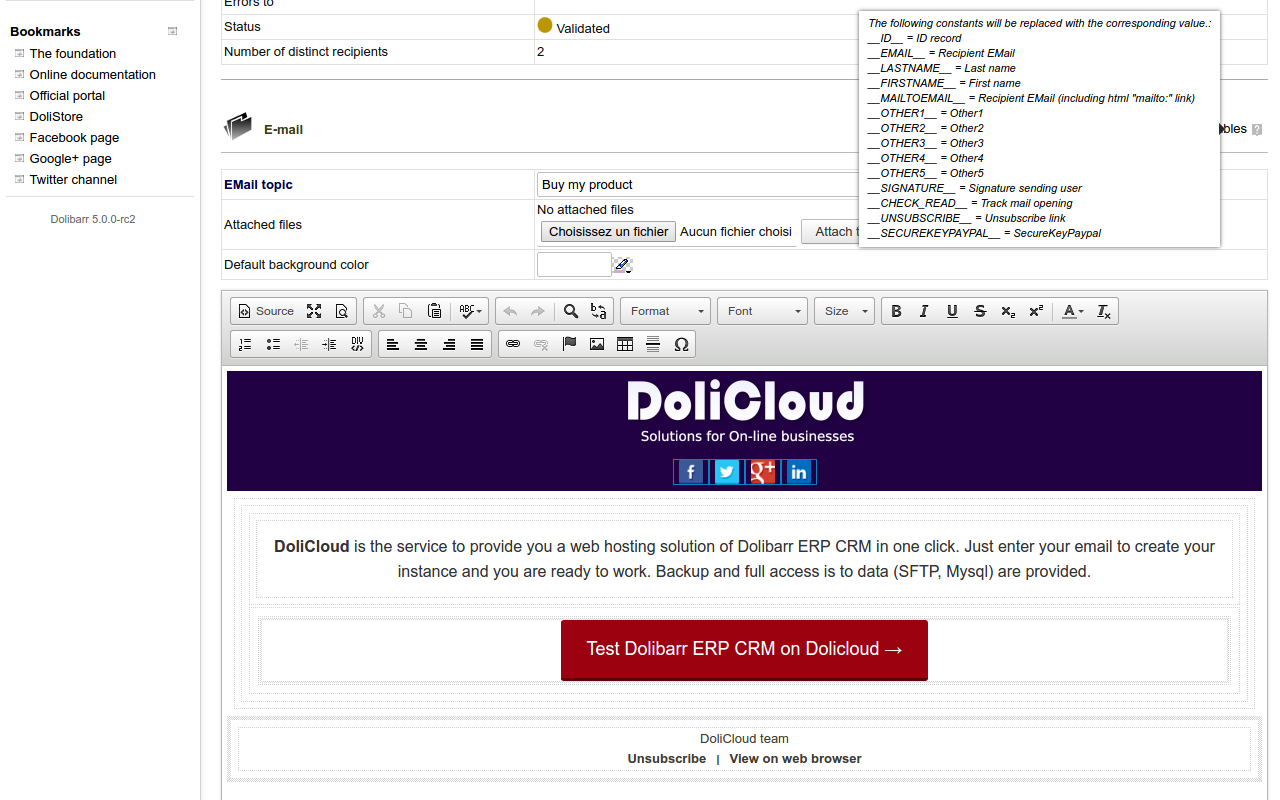
Create your Emailing content with a friendly editor


Create emailing campaigns using an easy to use WYSIWYG editor or for advanced users, an HTML editor. You can also attach files to your sent emails.

Personalize the e-mail template using variables that will be replaced with personalized values for each recipient, like


  • First name, Last name, Email of recipient, signature of emailing author.
  • Invisible markers to track if email is read or not.
  • An easy to use links to allow recipients to unsubscribe in one click to your mass emailing campaigns.
  • And more variables depending on other modules you activated...


Select your recipients from your existing data


Select the recipients of your emailing campaign among a list of predefined targets : You can select among any customer, supplier, partner, employees or from an external source. The recipients selector gives the ability to choose mail addresses depending on a lot of criteria for an accurate targeting.

Combine different sources if you need. The application will automatically discard duplicated emails.


Test your campaign in one click


Send your email to few test emails to validate your setup with a real email reader.


Send your emailing campaign


Send your email campaign from the web interface or from command line. Use your own or third party external SMTP server.

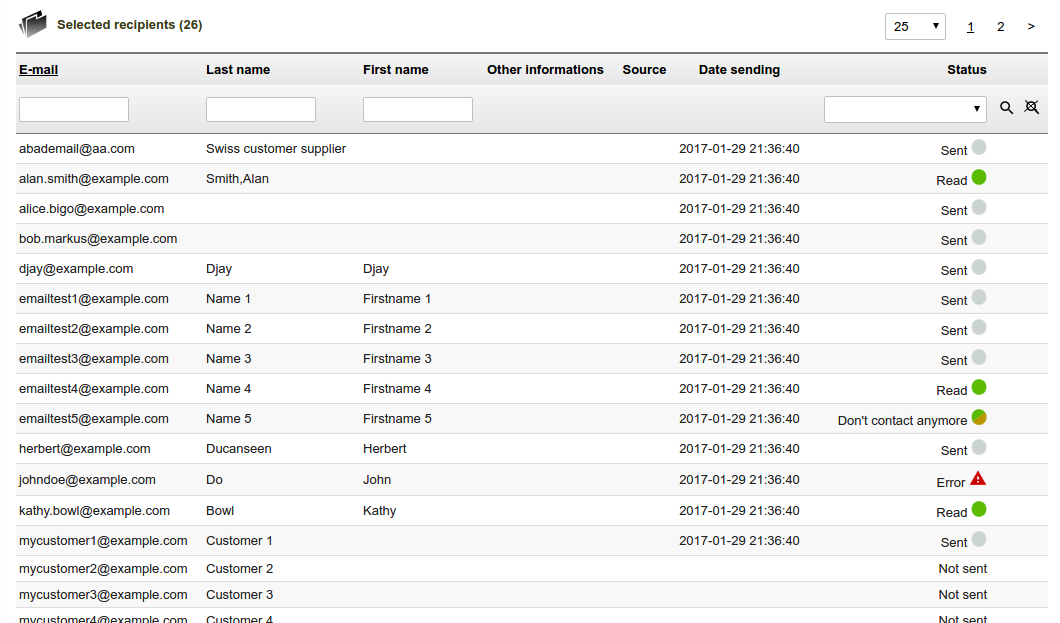
Track sending status per recipient to know which email was sent or not, who has opened the email and who has decided to unsubscribe.


Duplicate your campaign to quickly restart it later


Once the e-mailing campaign is sent, the status is updated letting you know whether the e-mails have been sent properly or not. If all the mails have not been sent, you can retry to send them later.

Or just duplicate your campaign, content and/or recipients to start a new campaign in few clicks.


For further features...


If you prefer using the web interface (and not only the SMTP service) of a third party E-mailing service (MailChimp, SendInBlue, SendGrid, ...), you can check if a connector is available for your version on the Dolistore.


Surveys and Polls


Ask your employees or partners their choice or opinion on any topic by running a poll/survey.
Give your contacts online access to your polls.


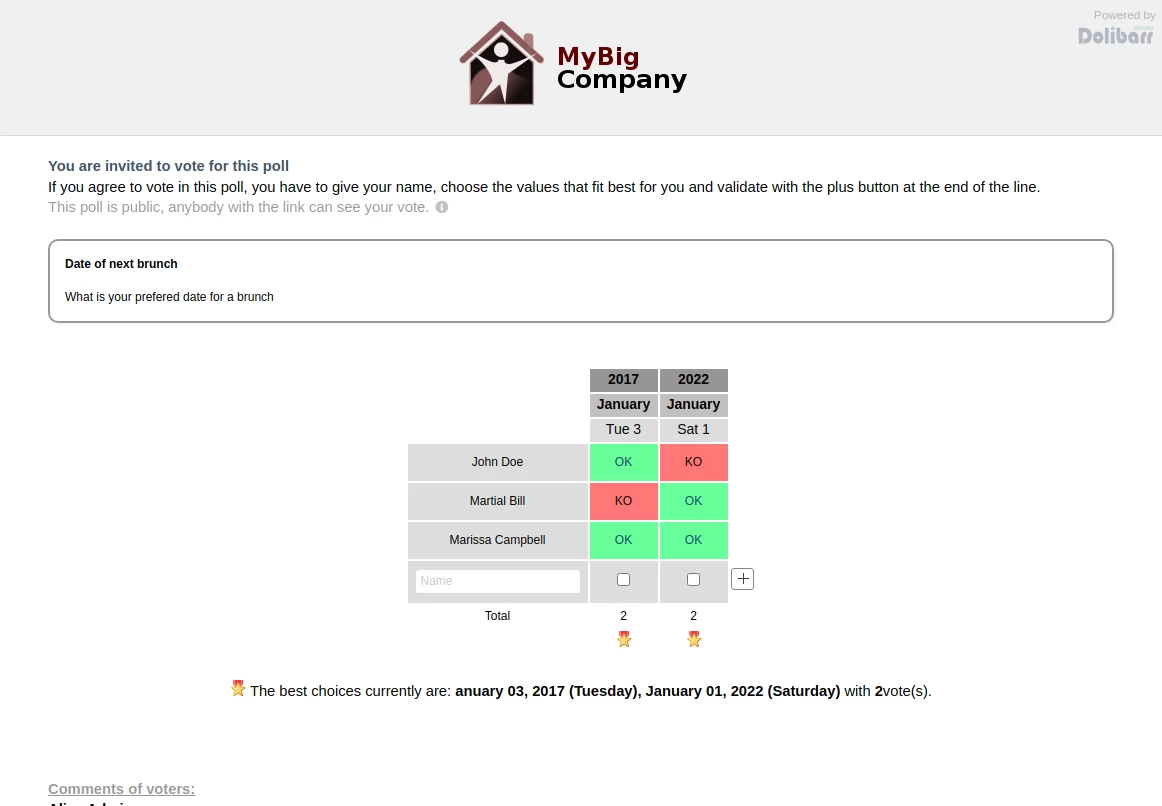
You can create polls to determine the best date for a meeting, to take vote for an election, or any other topic. Several options such as receiving email for each vote, writing comments, and making votes public or private can be enabled.


Create the poll or survey and add the questions you want to ask


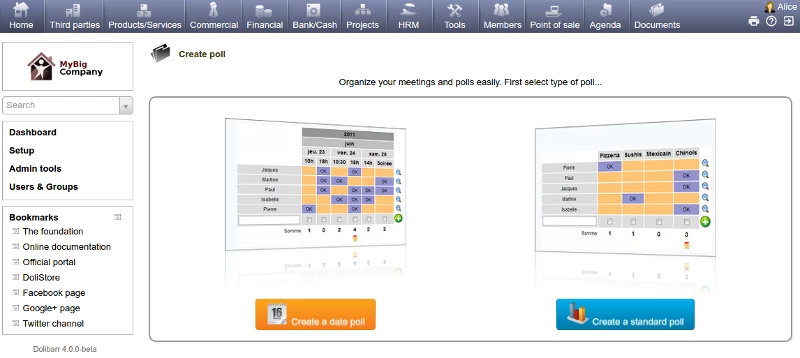
Choose the best type of poll that matches your needs (date poll to select different days/hours in a calendar, or vote/standard poll to select with a list of yes/no or for/against). Define the title, a closing date, and a description that will be displayed on the public or private poll page. Create as many questions/answers as you need.


For each poll, choose among several options like :

  • Receive an email for each vote.
  • Allow voters to add comments in the poll.
  • Allow voters to see (or not), other people's votes.


The module will give you an URL link to your survey to allow people to vote with any web browser...


Ask your employees, colleagues or partners to vote


Send the created poll link by email or publish the poll link online on your website, so people can vote and post comments. Get all of this done in just a few clicks.


You can also use the mass-emailing module of Dolibarr to inform your contacts about the availability of your poll!


Read and download the poll results


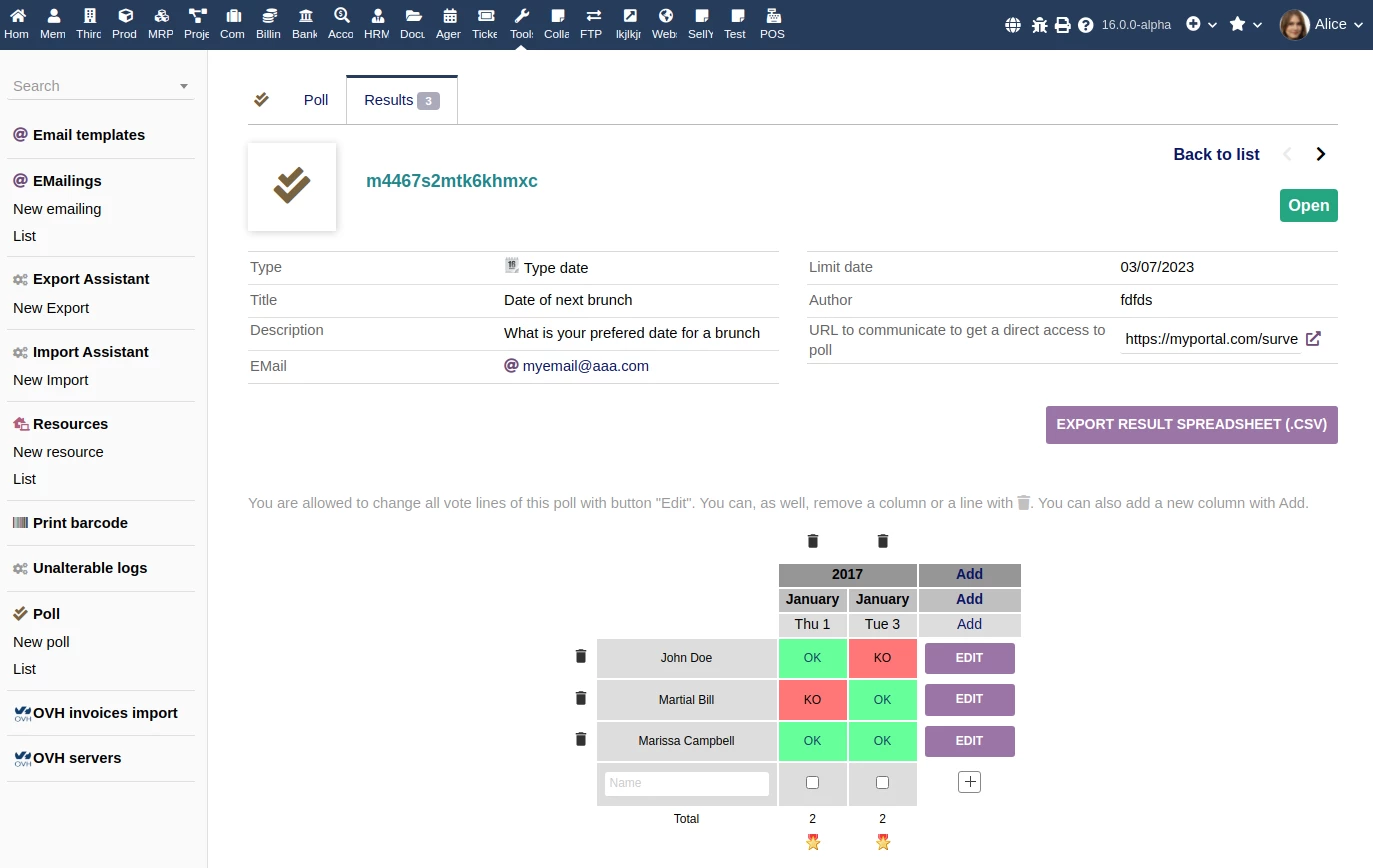
In the end, you can administer your polls and surveys, read, download and analyze the results of your polls and surveys from the back office.


Retrieve all your polls, closed or open. Find a summary of votes, details for each voter, and read comments. Close or re-open a poll at any time.


Opportunities, Projects and Tasks


Projects and tasks are useful to track leads, opportunities and timesheets.
Track how much revenue your projects are bringing back to your company, and their profit or loss statistics.


Create Projects, Leads or Opportunities

Use the Dolibarr project module according to your needs. Track Leads, Opportunities, Internal, Customer or Supplier Projects.

Add the predefined fields of your choice to make the data more managable, complete and as accurate as you need it to be.


Define who can view or edit the project

Make the project public or select the employees and/or partners who can participate in the project. Users will be able to enter the time spent if you decide to use the timesheet feature.


Create tasks

If you need to track dedicated tasks, map them to your projects. You can define properties on your tasks like planned workload and assign specific users.

You can also create sub-tasks and have a hierarchy of tasks.


Record the time spent on Projects/Tasks

If you decide to use Dolibarr projects to track the time spent, then allow each user to declare their time on a daily basis with a dedicated interface, or on a weekly or monthly basis with a different interface for the same.

Enter the estimated progress of your tasks/project during the same step in which the time spent is entered, so that the progress is always captured and compared with the time spent.

If an hourly rate is set in your user card, then a cost for the time spent will also be automatically calculated and reported.

More information is available in the following page: timesheet feature.


Follow your project or tasks

Follow your projects:

If you use opportunities, get the potential turnover of your leads instantly, weighed with the probability, to get a calculated (propable) future turnover.

If you decide to use tasks, track their progress and compare the progress with what you had initially planned. You can review the plan using the Gantt view.


Project overview

Projects offer an overview tab displaying a lot of information about projects and linked elements in Dolibarr such as proposals, invoices, orders, etc.

All these data allow you to determine profit and loss resulting from the project.


Interventions


Create intervention records.
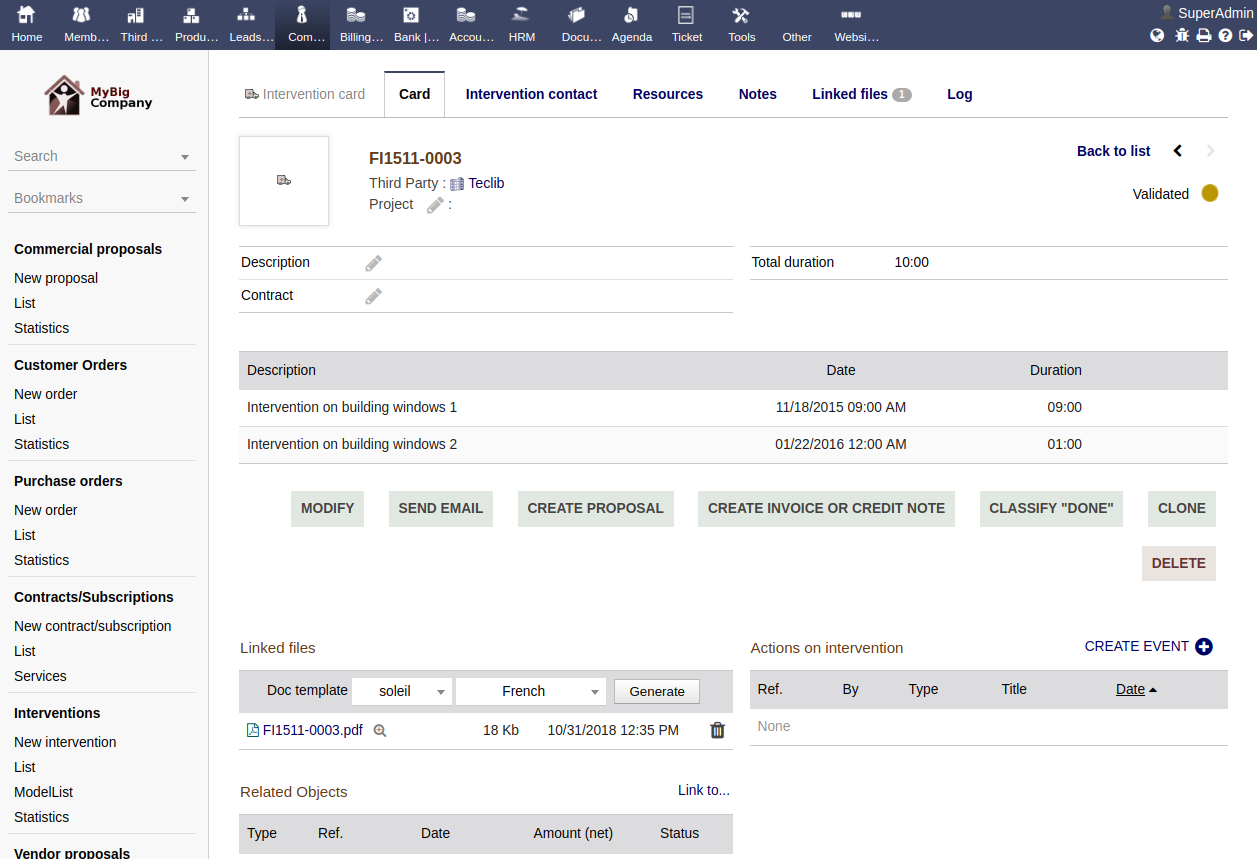
Convert your interventions into invoices in order to bill your customers.


Create intervention records to track interventions that are to be done or are already done. Attach your intervention to a project if you want to have your intervention visible in the 360 degree view of projects.


Use any predefined products or services to fill your intervention records quickly, or provide specific descriptions.


Link your interventions with events on agenda, projects, orders, etc...


Convert your interventions into commercial proposals or invoices according to your desired workflow.


Agenda


An embedded Agenda, like any common calendar, enhanced with features dedicated
to your ERP and CRM system (links to your customers, employees, projects, invoices, ...)


calendars
,  
business events
,  
reminders
,  
booking


Manually create events in the past or future


Record your events in the embedded agenda: Past events for tracking purpose, or Future events for reminder purpose. Assign events to a customer/contact, project, and/or users.


If the module Resources is activated, you can also assign resources to your event, for example, to track which room is occupied, which car is hired, or which video projector is reserved, when it was reserved, and by whom.


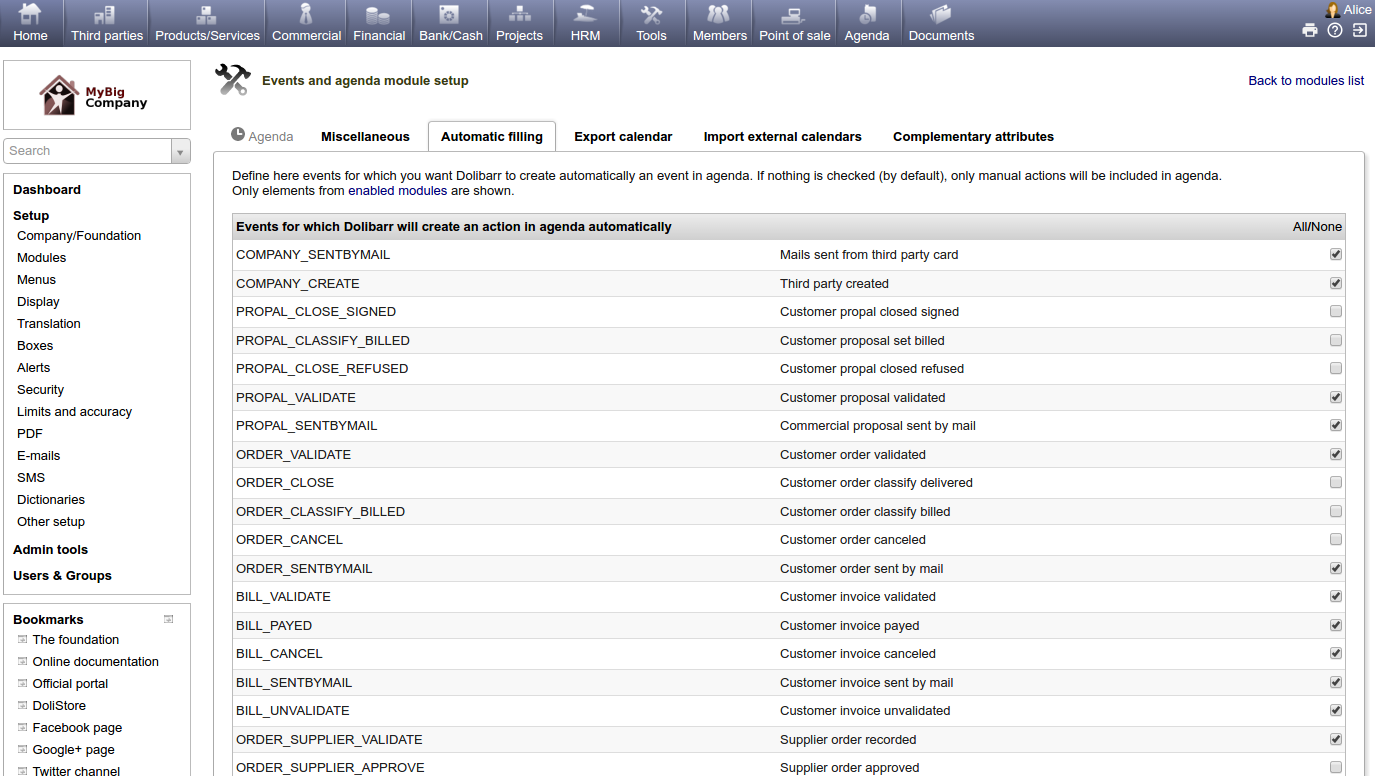
Setup the module to define the events which need to be recorded automatically


Using the setup of the Agenda module, you can decide to automatically record events related to any business action that occurs in the application (For example, track your order, proposal, or invoice status change, track creation, or deletion of new customers, ...)


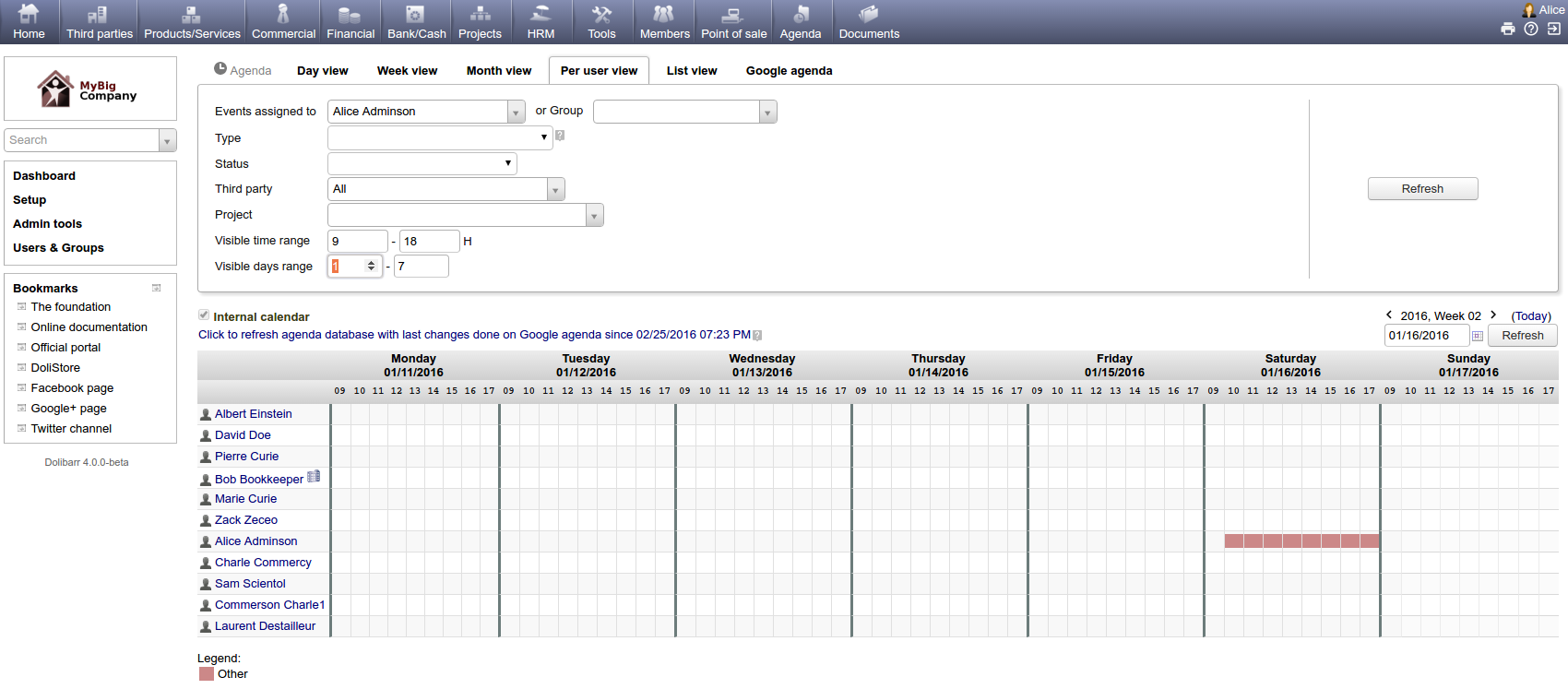
View events in different agenda views


View and search events using filters to view only the events you are interested in (by user, customer, project, status, or type).


If required, you can include in the agenda view, any events that are recorded into an external calendar (in read-only mode using the ical/ics import). Or, export your events into any external calendar using the ical/ics export link.


You can use different rendering views to review your events (view by day, by week, by month, by user, or the simple list). For example, the view "per month" or "per week" is interesting to show past or upcoming events while the view "per user" is great to know which user is busy or free to find the best time slot to create a new meeting request.